 MSP ERP
Step-by-step guide
How to create a role for viewing items
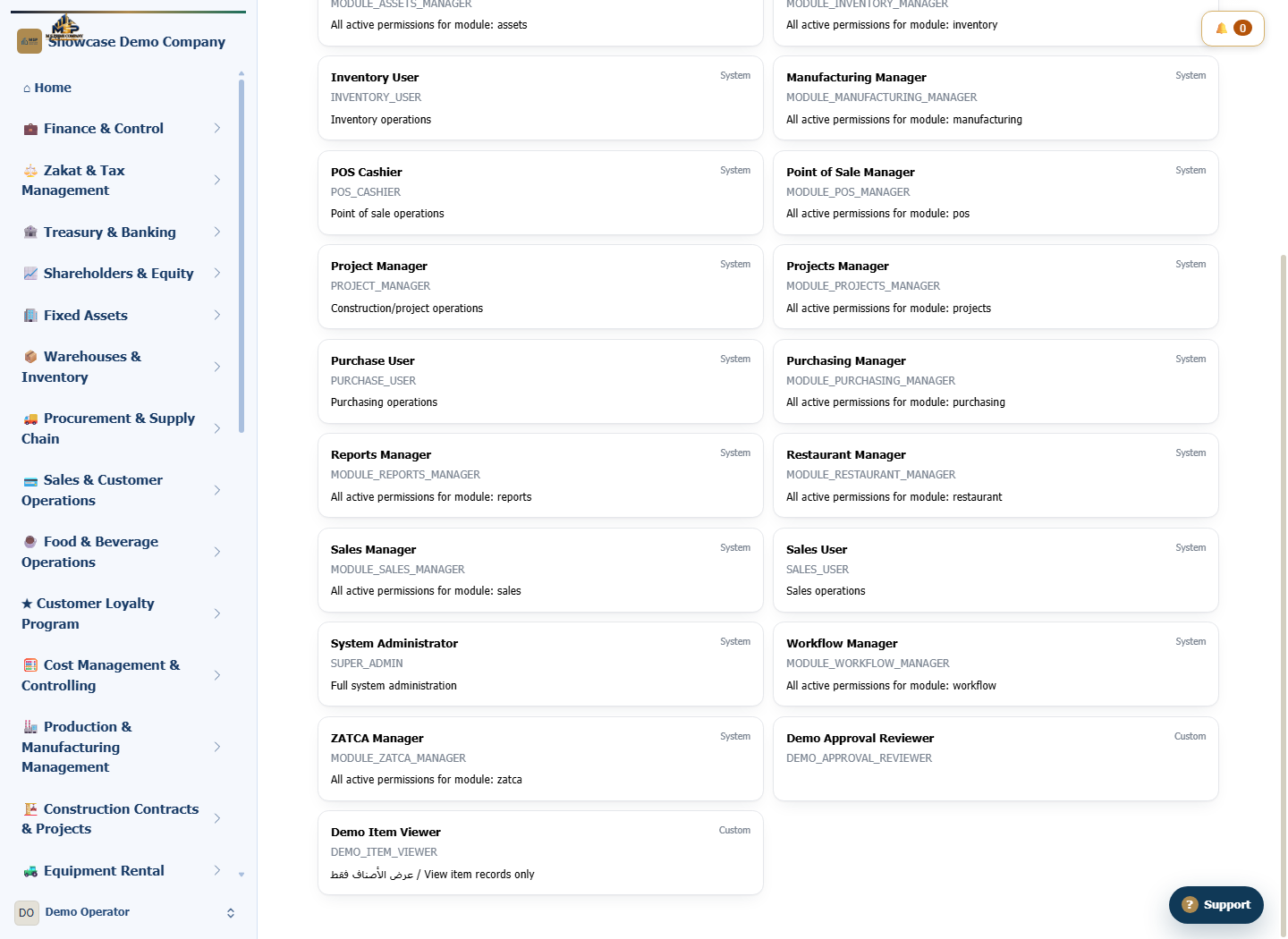
Roles group the permissions a user needs for a job. This example creates a custom role and shows how to check its saved permissions before assignment.
Before you start
Use a security administrator account in a test environment. The DEMO_ITEM_VIEWER role is intended for staff who need to view the item list.
Steps to follow
Define the role
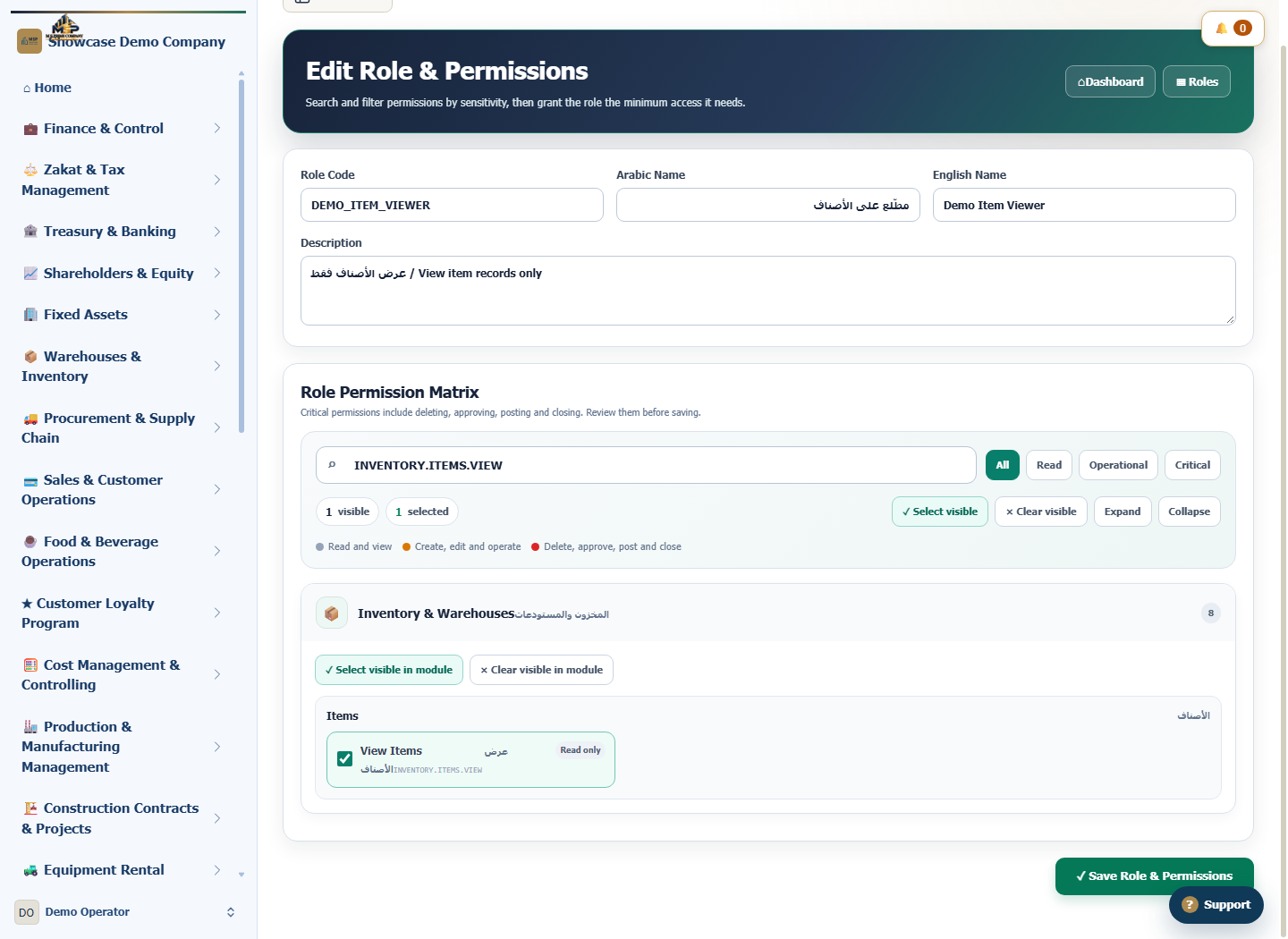
Open Roles and select New Role. Enter DEMO_ITEM_VIEWER as the role code, with مطّلع على الأصناف and Demo Item Viewer as its names.
Find the view permission
In Role Permission Matrix, search for INVENTORY.ITEMS.VIEW. Select the checkbox for viewing items only.
Save and check the selection
Select Save Role & Permissions. Reopen the role from the list and confirm that its only selected permission is View Items.
Review access before assignment
When assigning the role, check the user’s branches, other roles and overrides. Use a test account to confirm that the item list opens and that create and edit actions are restricted unless another setting grants them.
What to check
The example shows the saved role matrix before assignment. Verify effective access with the user’s account after configuring roles, branches and overrides.