 MSP ERP
Step-by-step guide
How to create a purchase order and check ordered quantities
A purchase order links the supplier, branch and department to the agreed items, quantities and prices. Its details distinguish ordered, received and invoiced quantities so the team knows what is outstanding.
Before you start
Prepare a fictional supplier and item, a branch and department, and a purchasing or base unit for the item. In this example, order 10 notebooks at SAR 12 each.
Steps to follow
Start a purchase order
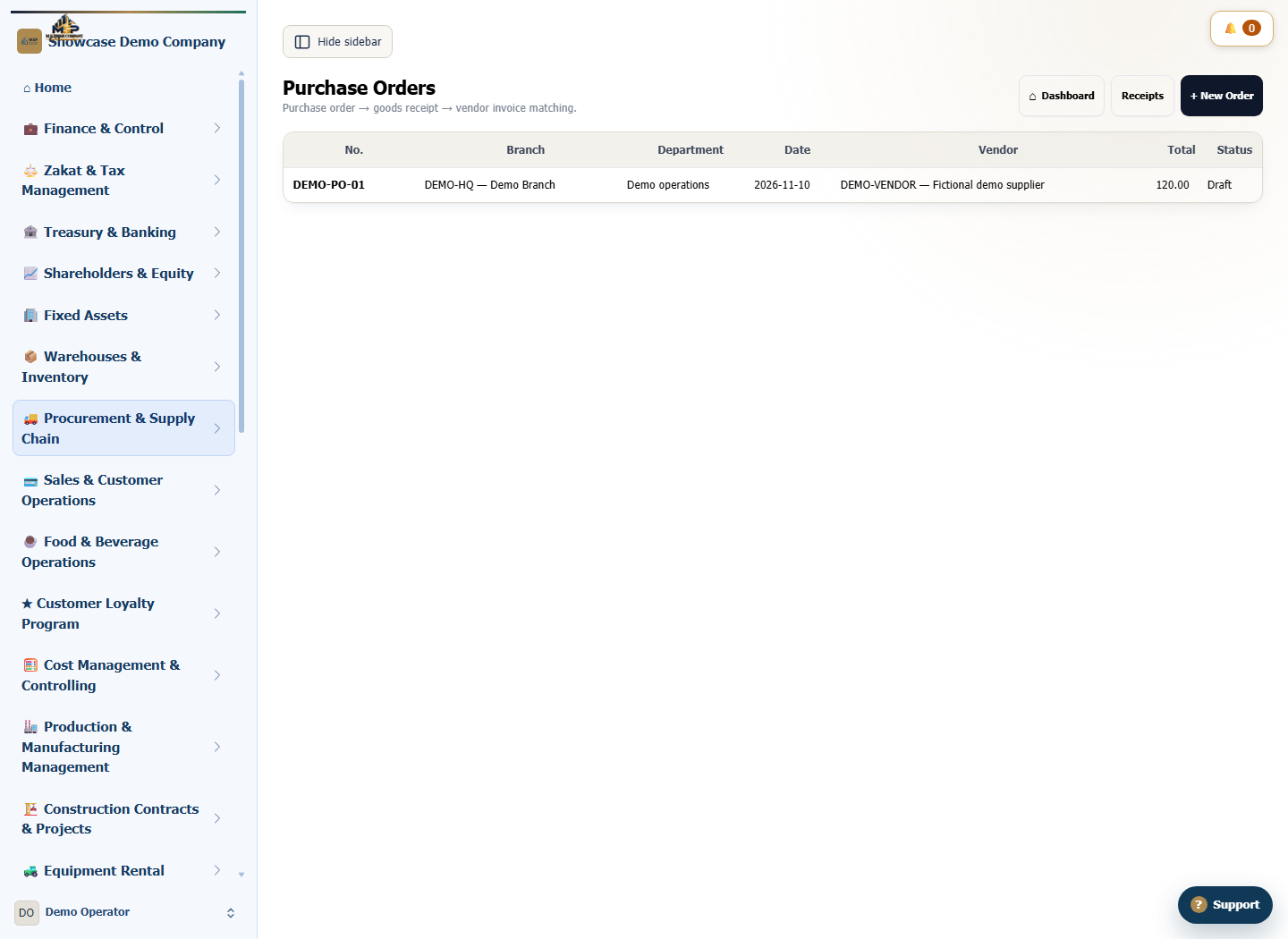
From Purchase Orders, select New Order. Choose the branch, department and supplier. Check the order date and enter the expected delivery date if known.
Add the reference and items
Link the source purchase requisition where applicable and check that its department matches. Add the sample item, unit, ordered quantity and unit price.
Review the total and save
Check the currency, exchange rate and amount. Ten units at SAR 12 give a total of SAR 120. Save the order as a draft.
Open the details before receipt
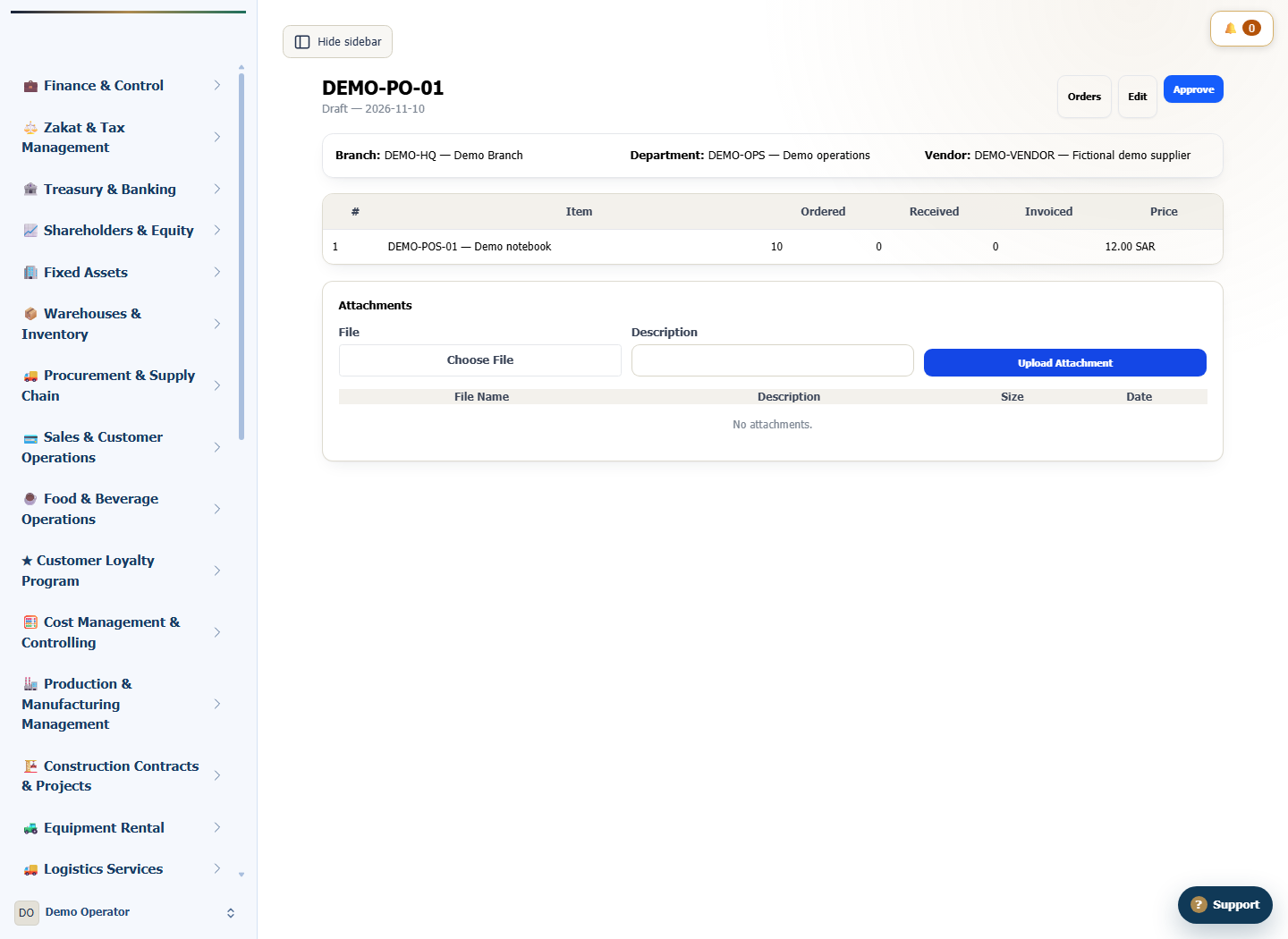
Find demo order DEMO-PO-01. Compare ordered, received and invoiced quantities. The demo draft shows 10 ordered, with no receipt or invoice recorded against it.
What to check
Check the supplier, department, unit, quantity and price. When goods arrive, match the received quantity to the order and identify any balance still outstanding.