 MSP ERP
Step-by-step guide
How to submit a purchase order and verify its approval
The approval centre brings pending requests and reviewer decisions together. The policy defines the stages, and each reviewer’s authority determines which documents they can act on.
Before you start
The example uses synthetic purchase order DEMO-PO-APPROVAL for SAR 120 in Demo Branch, with a single-stage policy and a separate authorised reviewer.
Steps to follow
Submit the purchase order
Open the draft in Purchase Orders. Check the supplier, quantity and amount, then select Submit for Approval and confirm that the order is pending approval.
Find the request as the reviewer
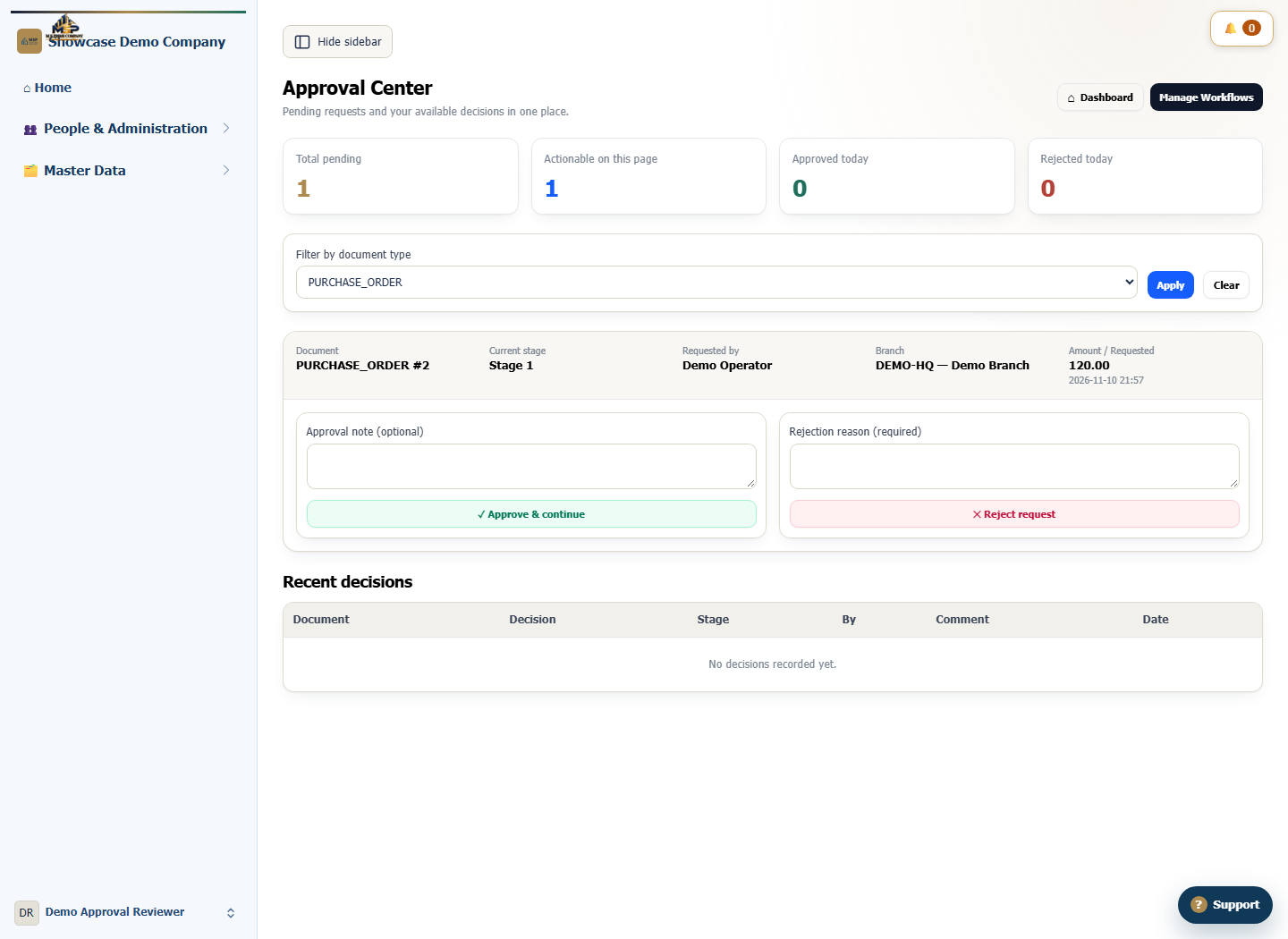
Sign in as the authorised reviewer and open the Approval Center. Filter by purchase order (PURCHASE_ORDER). Match the document, branch, amount and current stage.
Record the decision
After reviewing the document, enter a note such as Quantity and value checked, then select Approve & continue. The single-stage demo workflow completes the approval.
Verify the recorded decision
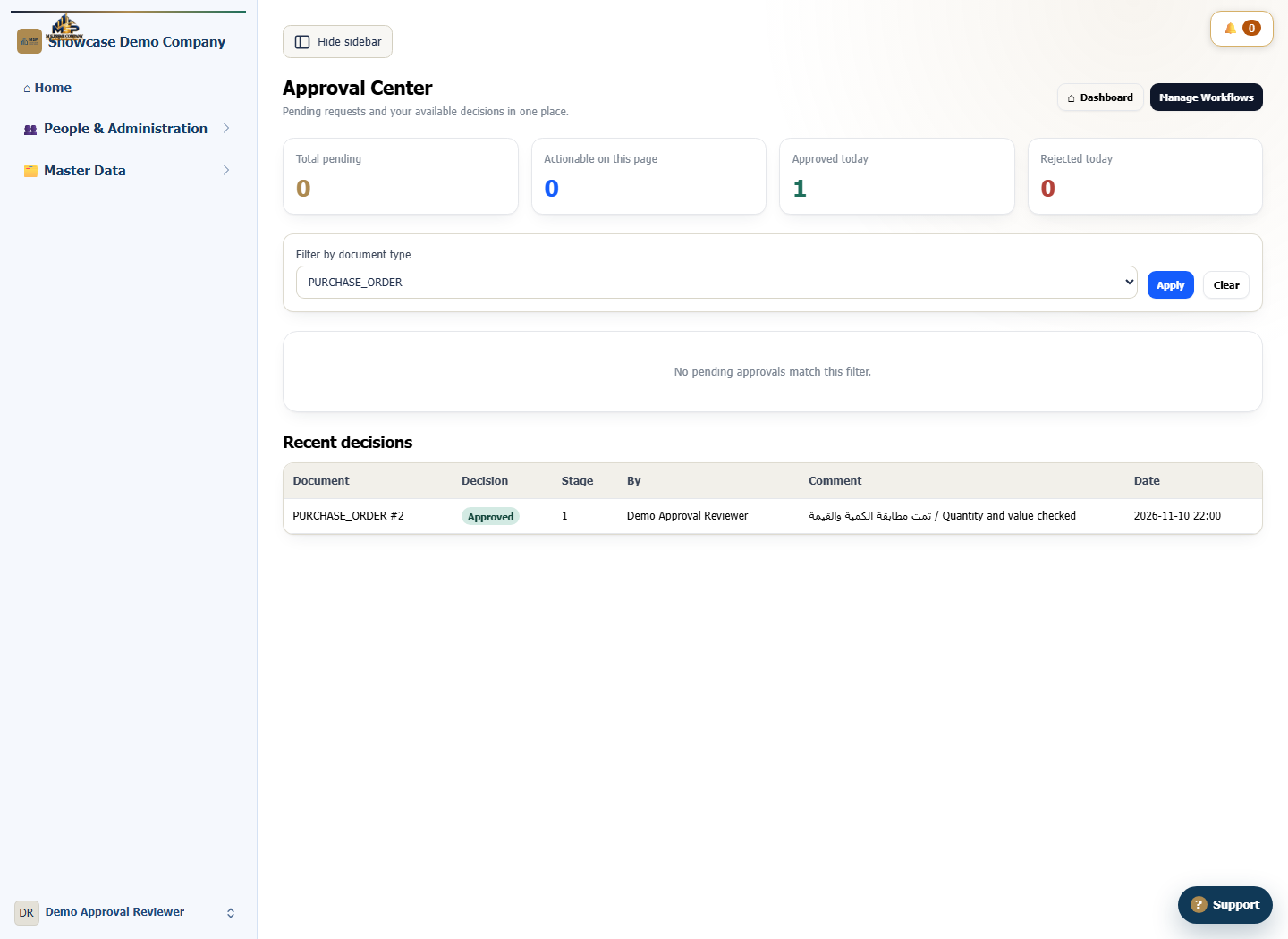
In Recent decisions, match the document, reviewer and note. Return to the purchase order and confirm its approved status.
What to check
Match the document and stage when verifying the decision. With a multi-stage policy, follow the request to the next reviewer until approval is complete.