 MSP ERP
Step-by-step guide
How to prepare and review a cash-to-bank transfer draft
A transfer document brings the source and destination accounts, currencies, amounts and fees together. The draft helps the treasury team review the direction of the movement before posting.
Before you start
The example uses cashbox DEMO-CASH-01 and fictional bank account DEMO-BANK-01. Both use SAR and are available to Demo Branch. The transfer amount is SAR 1,500, with zero fees.
Steps to follow
Start a new transfer
In Bank / Cash Transfers, select New Transfer. Check the generated transfer number and date.
Choose the source and destination
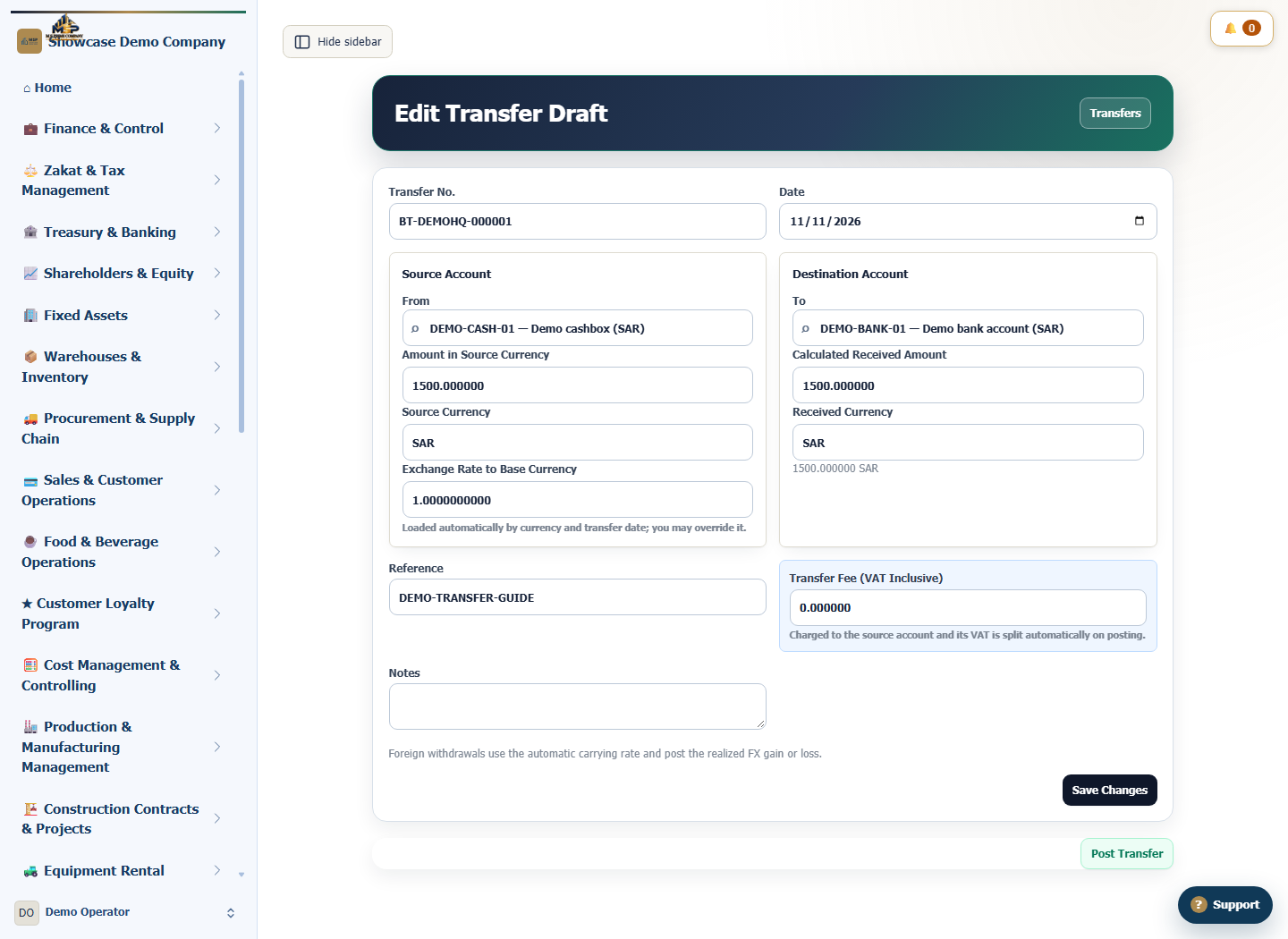
Under Source Account, select DEMO-CASH-01. Under Destination Account, select DEMO-BANK-01 and check the direction of the transfer.
Enter the amount and save
Enter SAR 1,500. Check an exchange rate of 1 and a received amount of SAR 1,500 for this same-currency example. Use zero fees and reference DEMO-TRANSFER-GUIDE, then select Save Draft.
Review the saved draft
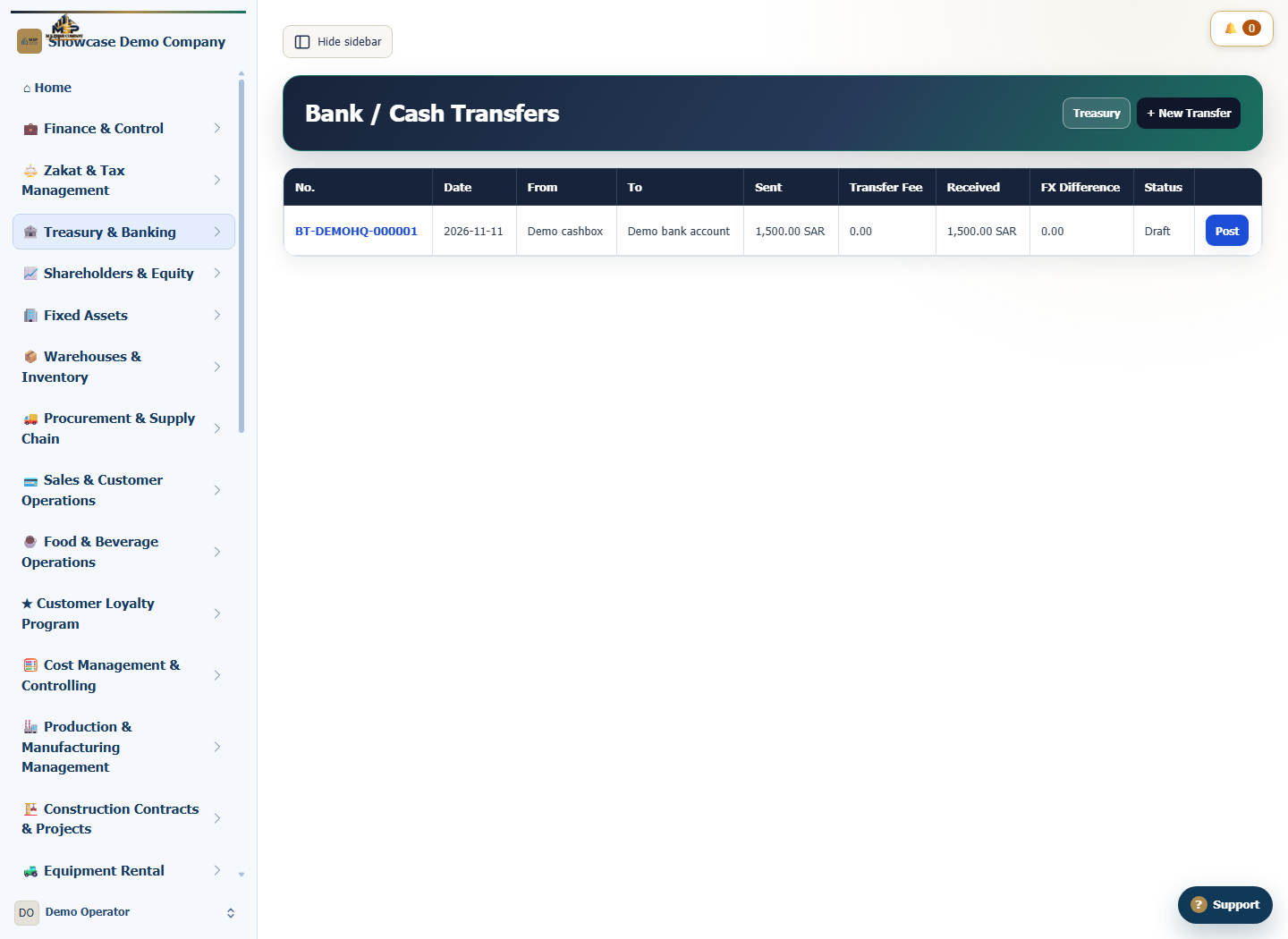
Return to the transfer register and match the sent amount, received amount and Draft status. Select the transfer number to reopen it and check the saved accounts and values.
What to check
Match the source, destination, currency and fees. The draft can then follow your treasury team’s review and posting process.