 MSP ERP
Step-by-step guide
How to set up a shareholder and draft a capital contribution
The shareholder register links shares, nominal value and ledger accounts. Each capital transaction has its own number and status for review and follow-up.
Before you start
The example uses fictional partner DEMO-SHAREHOLDER. Prepare the capital, debit-current and credit-current ledger accounts and a demo bank account available to the branch.
Steps to follow
Set up the shareholder and shares
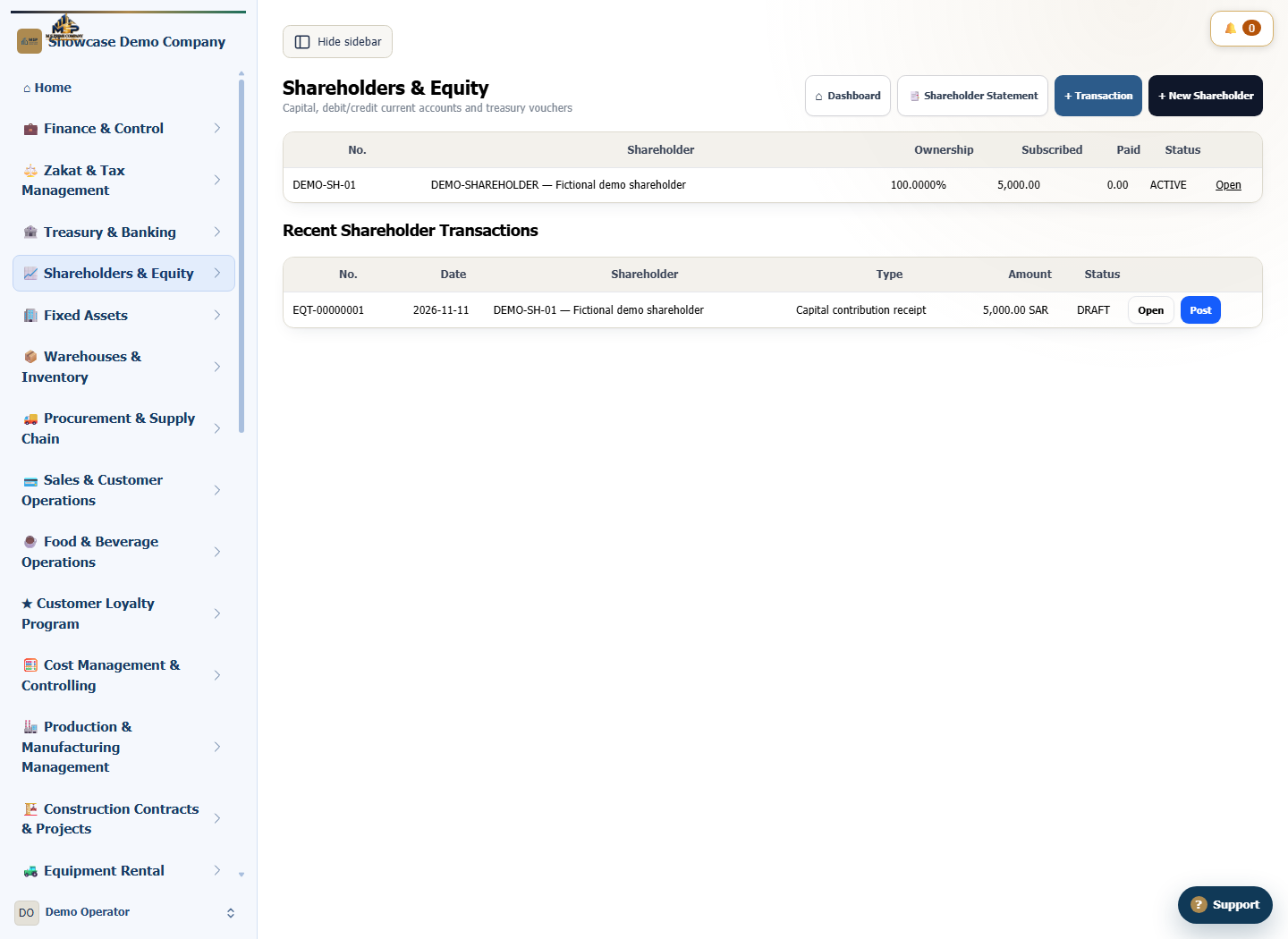
In Shareholders & Equity, select New Shareholder. Choose the demo partner, enter number DEMO-SH-01 and set 100 shares at SAR 50 each. Check the effective date and status.
Link the accounts and save
Choose DEMO-CAPITAL-GL as the capital account, DEMO-CURRENT-CR as the credit-current account and DEMO-CURRENT-DR as the debit-current account. Select Save and check subscribed capital of SAR 5,000.
Prepare the capital receipt
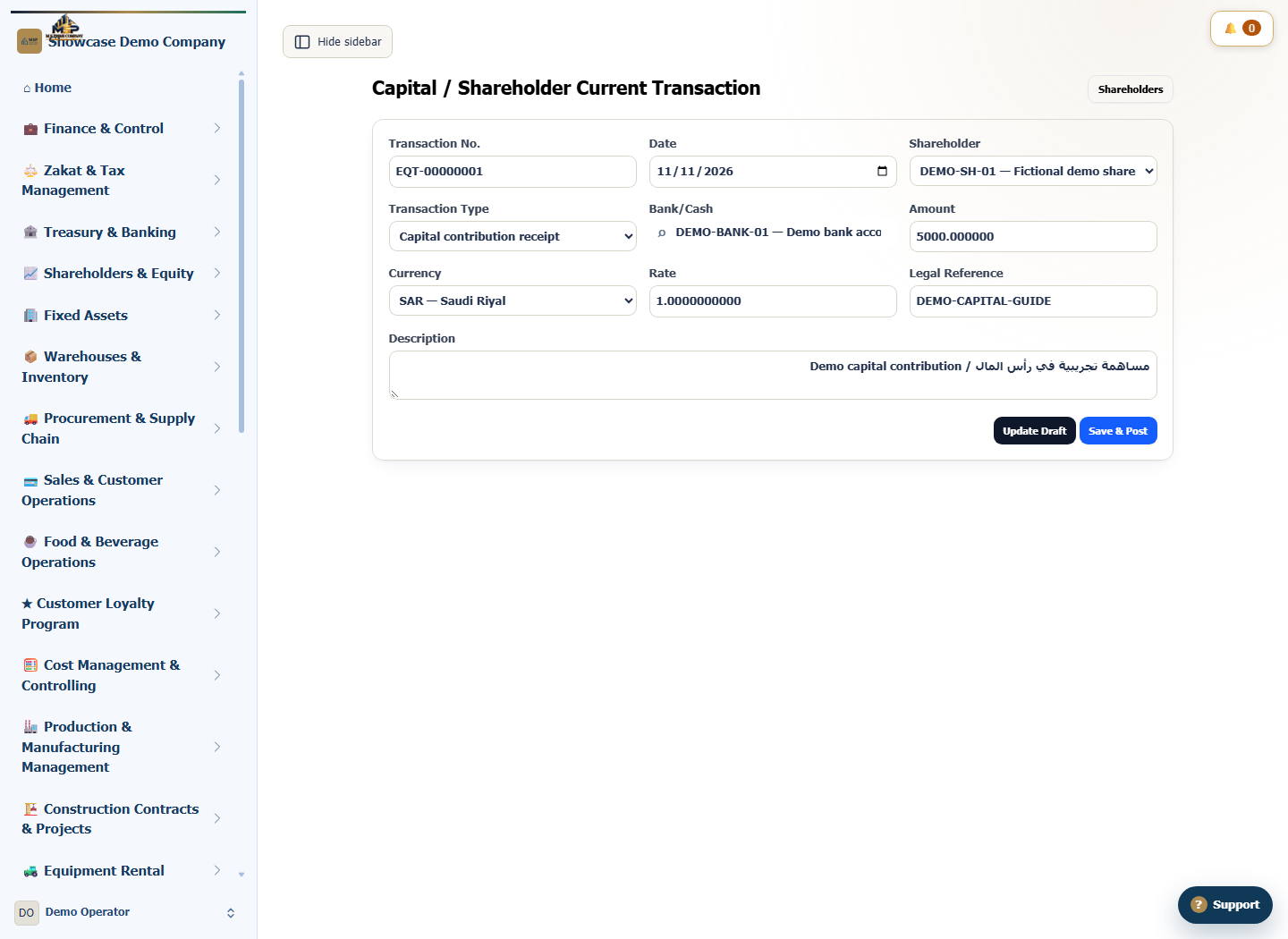
From the register, select Transaction. Choose DEMO-SH-01 and Capital contribution receipt, then select bank account DEMO-BANK-01. Enter SAR 5,000, currency SAR and an exchange rate of 1.
Save and review the draft
Add demo reference DEMO-CAPITAL-GUIDE and select Save Draft. Find the number under Recent Shareholder Transactions and open its edit action to check the amount, account and transaction type.
What to check
Subscribed capital is SAR 5,000 and the contribution is a draft. Actual paid capital is calculated from posted transactions.