 MSP ERP
Step-by-step guide
How to turn a replenishment recommendation into a purchase requisition
Purchase Needs Planning combines on-hand stock, incoming supply and demand. The purchasing team can check the recommended quantity and create a draft requisition from the item row.
Before you start
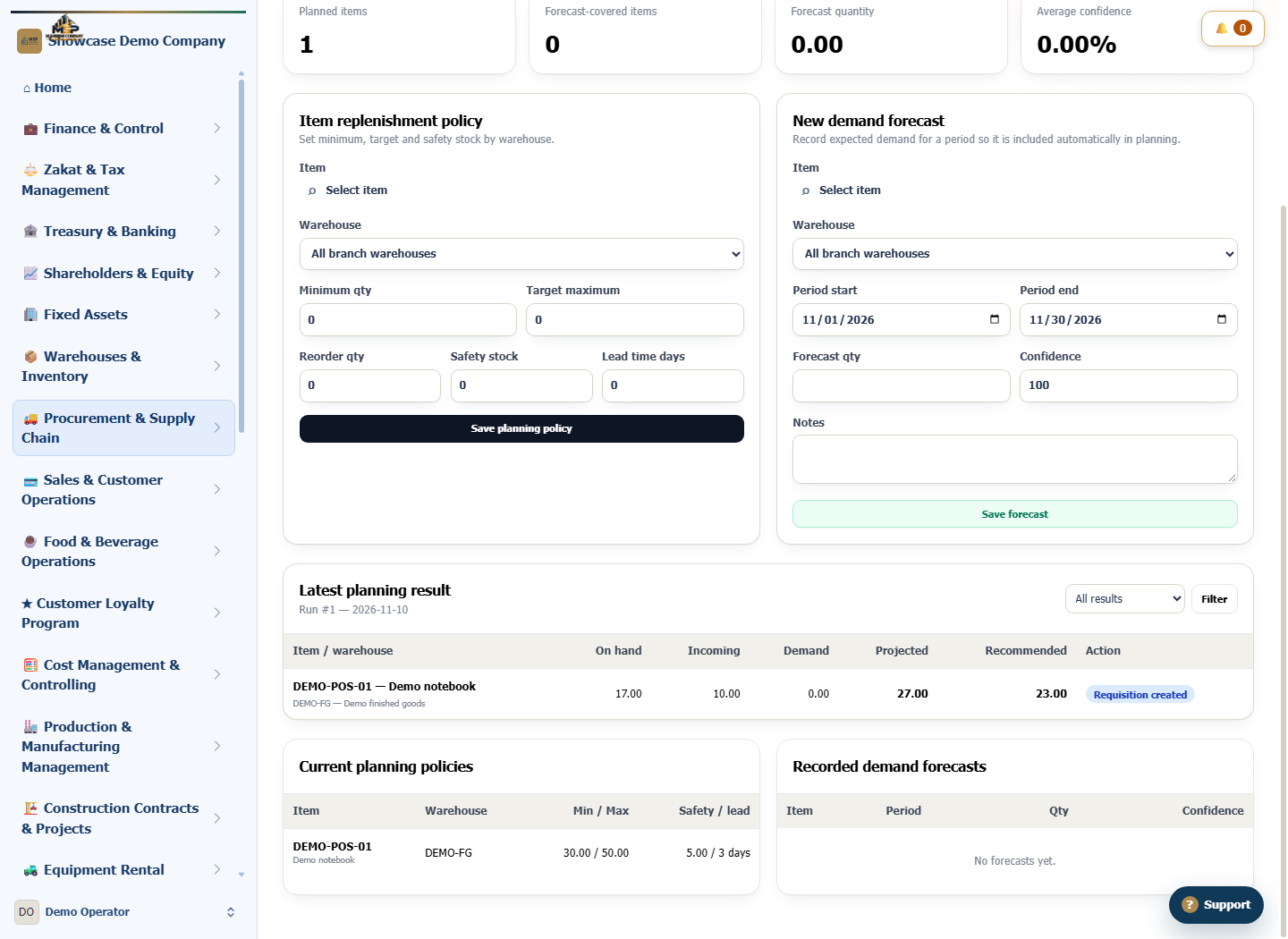
The example uses notebook item DEMO-POS-01 in warehouse DEMO-FG. Demo Branch has 17 units on hand, 10 incoming on an approved purchase order and zero calculated demand.
Steps to follow
Open Purchase Needs Planning
In Supply Chain, open Purchase Needs Planning. Under Item replenishment policy, select DEMO-POS-01 and warehouse DEMO-FG.
Set the example policy
Enter a minimum of 30 units, target maximum of 50, reorder quantity of 20, safety stock of 5 and lead time of three days. Select Save planning policy.
Run planning and read the recommendation
Select Run planning now. Under Latest planning result, check on-hand, incoming and demand. Projected stock is 27 units. MSP ERP recommends buying 23 to reach the target of 50.
Create a draft requisition
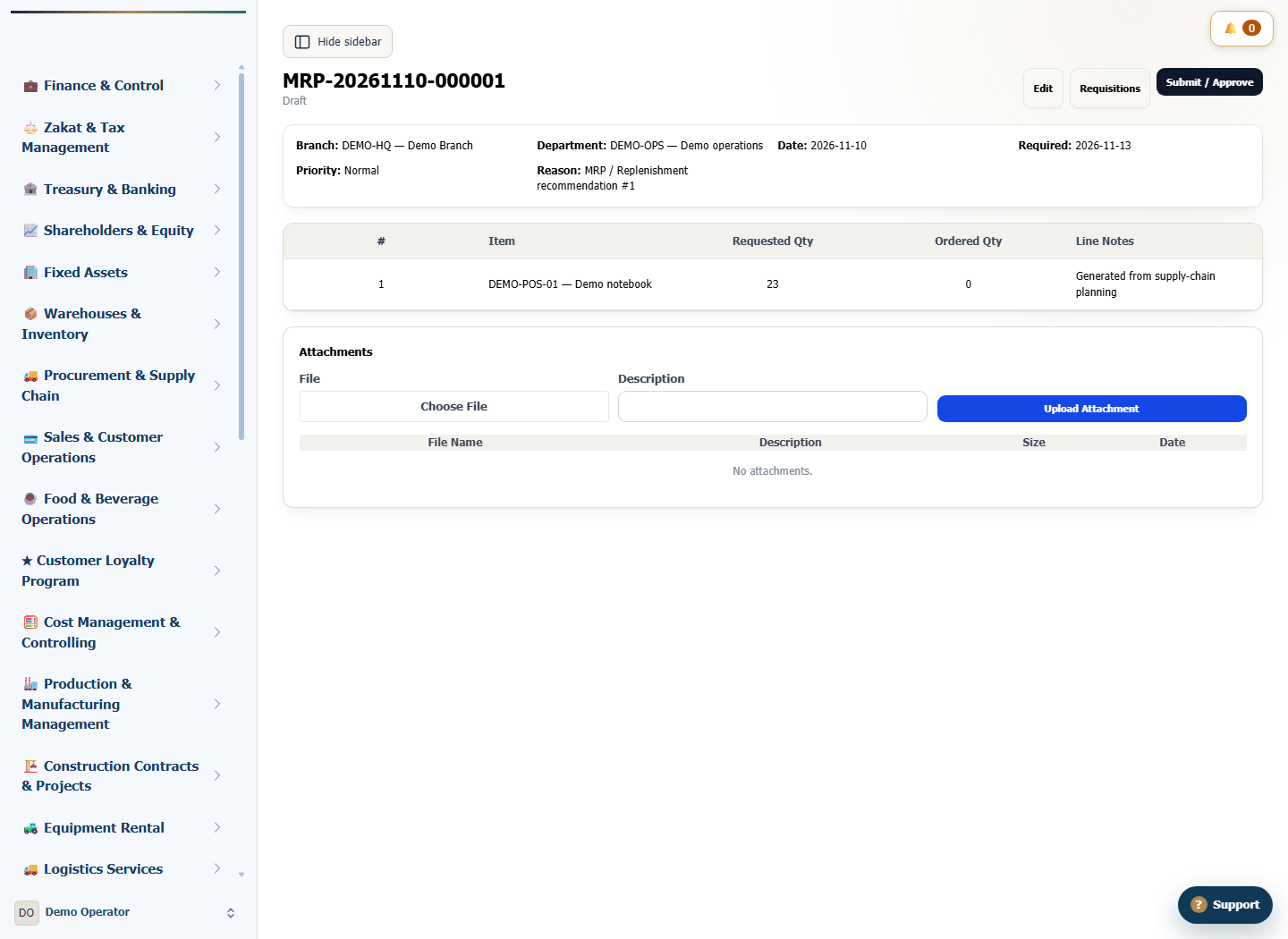
On the item row, select Create requisition. Open Purchase Requisitions and find the document with an MRP prefix. Confirm the draft status, item and requested quantity of 23 units.
What to check
Check the warehouse and projected stock before creating the requisition. After conversion, match its requested quantity to the Recommended column in the planning result.