 MSP ERP
Step-by-step guide
How to create and review a draft sales invoice
A sales invoice keeps the customer, items, quantities and prices together. Sales teams can save a draft and reopen the details to review the figures before posting.
Before you start
Use a demo customer and item. The example sells five notebooks at SAR 20 each. Identify the branch and prepare the sales order or delivery reference if the invoice will be linked to one.
Steps to follow
Open a new sales invoice
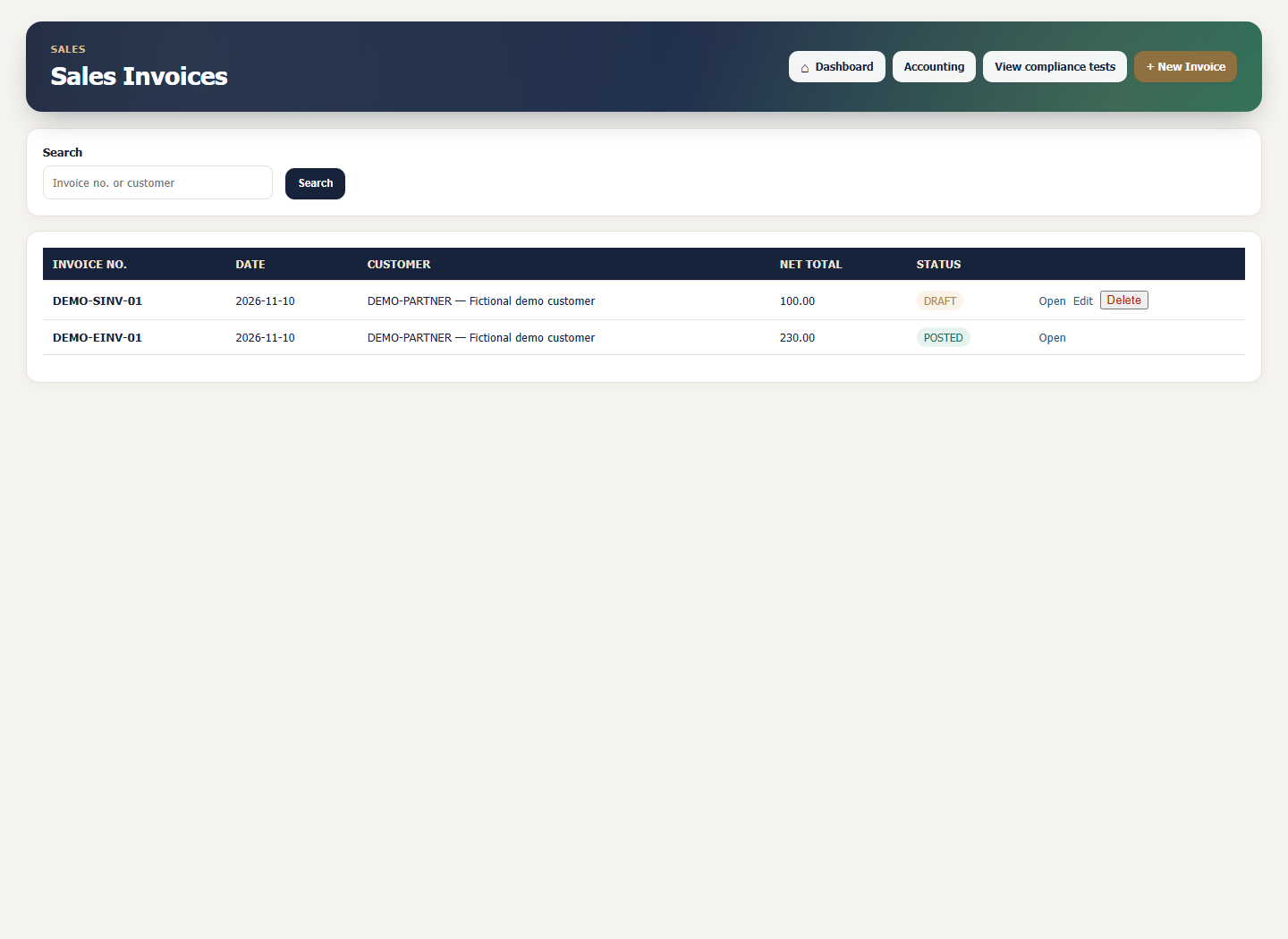
From the sales invoice list, select New Invoice. Select the customer and check the invoice date, supply date and invoice type for your workflow.
Add the sales line
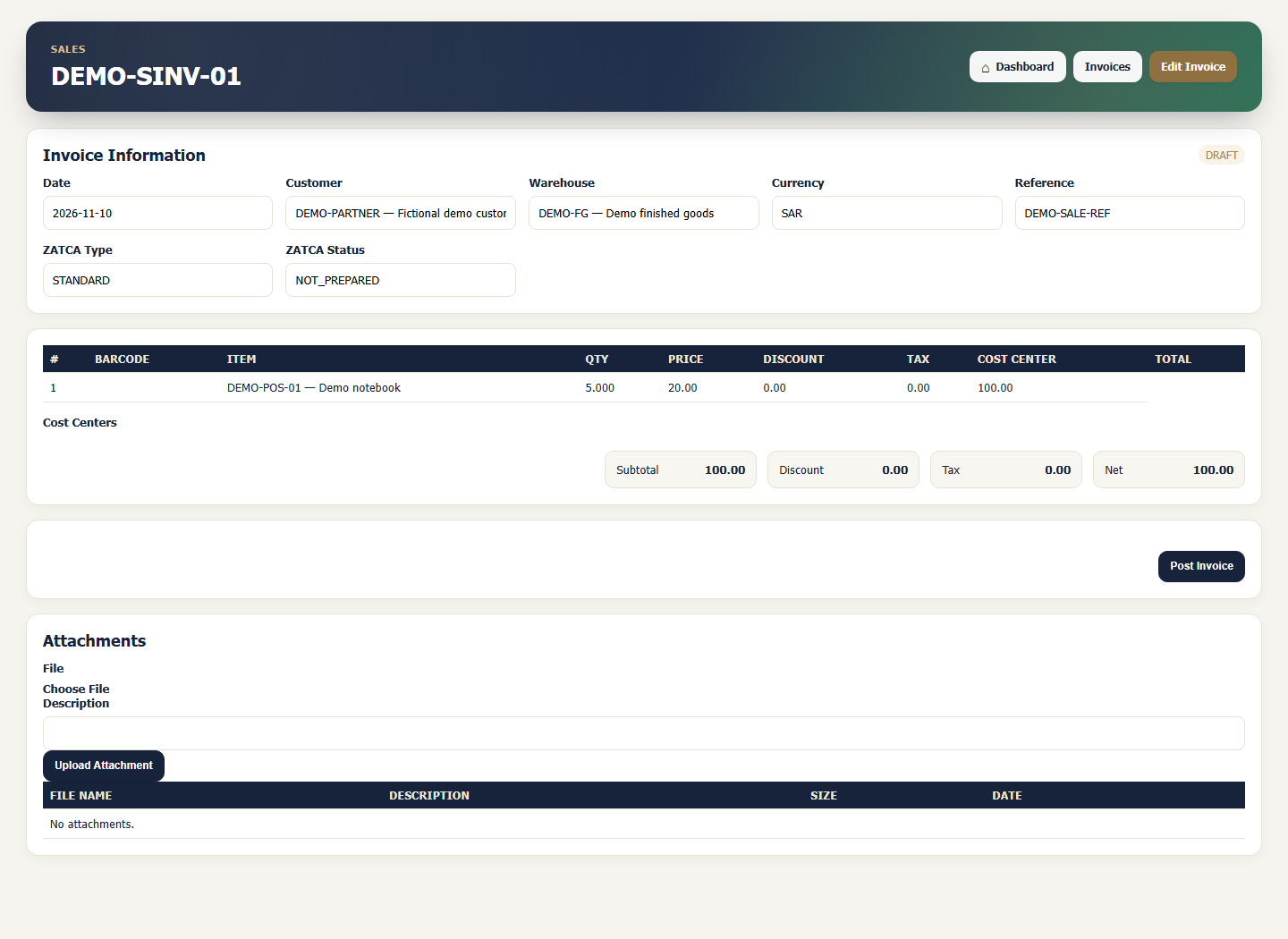
Under Invoice Lines, add a line and choose the item and unit. Enter a quantity of five and a unit price of SAR 20. The example line totals SAR 100 before discounts and tax.
Review the references and totals
Select the sales order or delivery reference if the workflow calls for it. Check the warehouse where applicable, then verify discounts, tax and the net total before saving.
Save and reopen the draft
Save the invoice and open it from the invoice list. Check its draft status, customer, item and quantity. After review, the authorised user can take the next step under your organisation’s process.
What to check
The screenshot shows DEMO-SINV-01. Match the quantity, unit price and line total. Check tax and payment settings for your organisation before posting.