 MSP ERP
Step-by-step guide
How to prepare a lease and review its schedule in the IFRS workspace
The lease workspace keeps contract details, measurement results and payment, interest and depreciation schedules together for review before approval.
Before you start
The example uses DEMO-LEASE-GUIDE from 1 November 2026 to 31 October 2027, with SAR 1,000 monthly payments in advance and a demo annual discount rate of 6%. These are training inputs.
Steps to follow
Start a demo lease
In the accounting compliance workspace, open IFRS 16 leases. Enter the code, name and contract reference, then choose Demo Branch, the fictional lessor and the demo payment account.
Enter the example assumptions
Use the stated commencement and end dates, a fixed payment of SAR 1,000, Monthly frequency and Advance timing. Enter a 6% discount rate, currency SAR and an exchange rate of 1, then review the remaining fields for the example.
Create and review the measurement
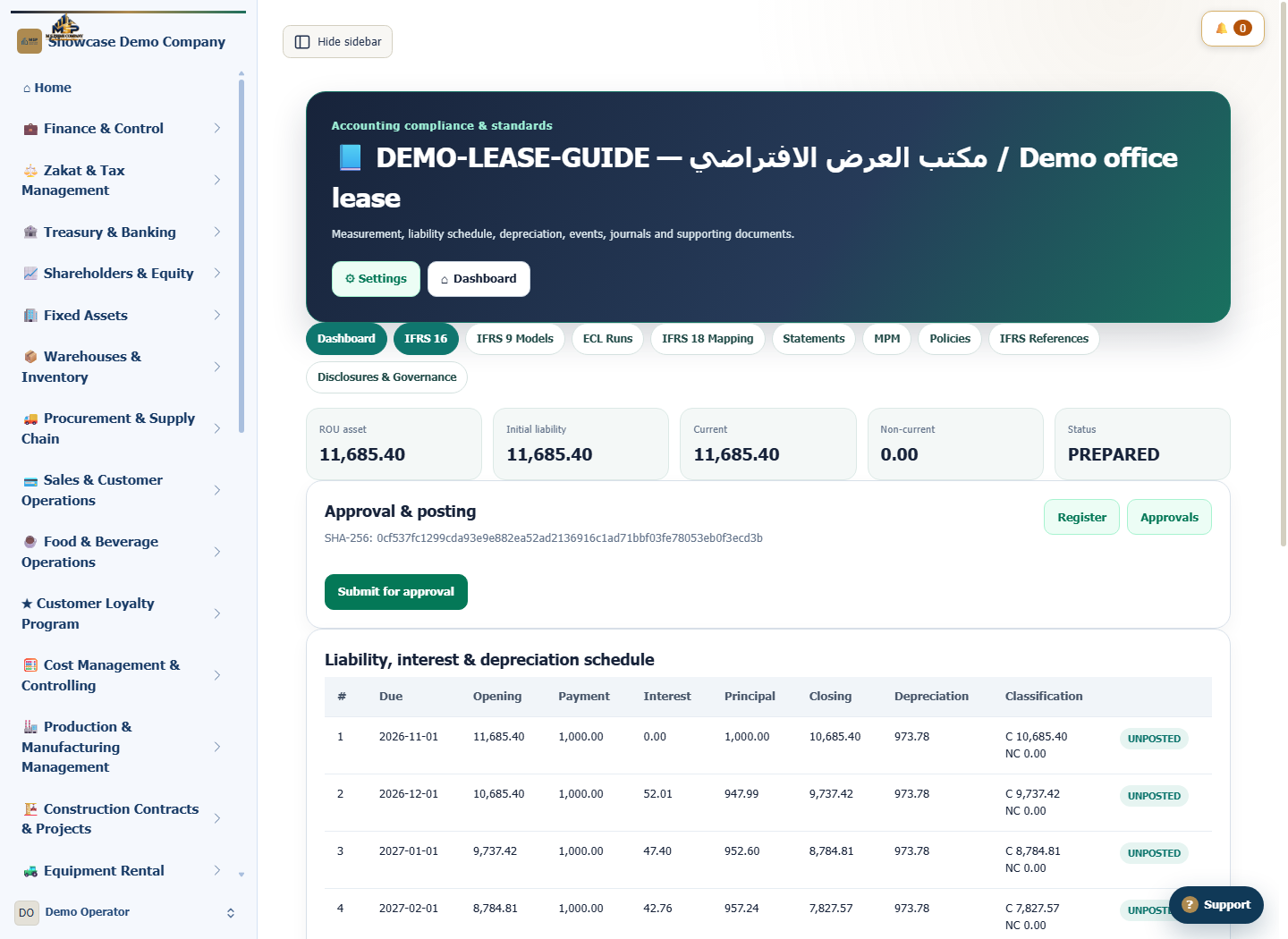
Select Create & calculate. The page shows the ROU asset, liability and PREPARED status. Match the contract code to the intended record.
Review the schedule rows
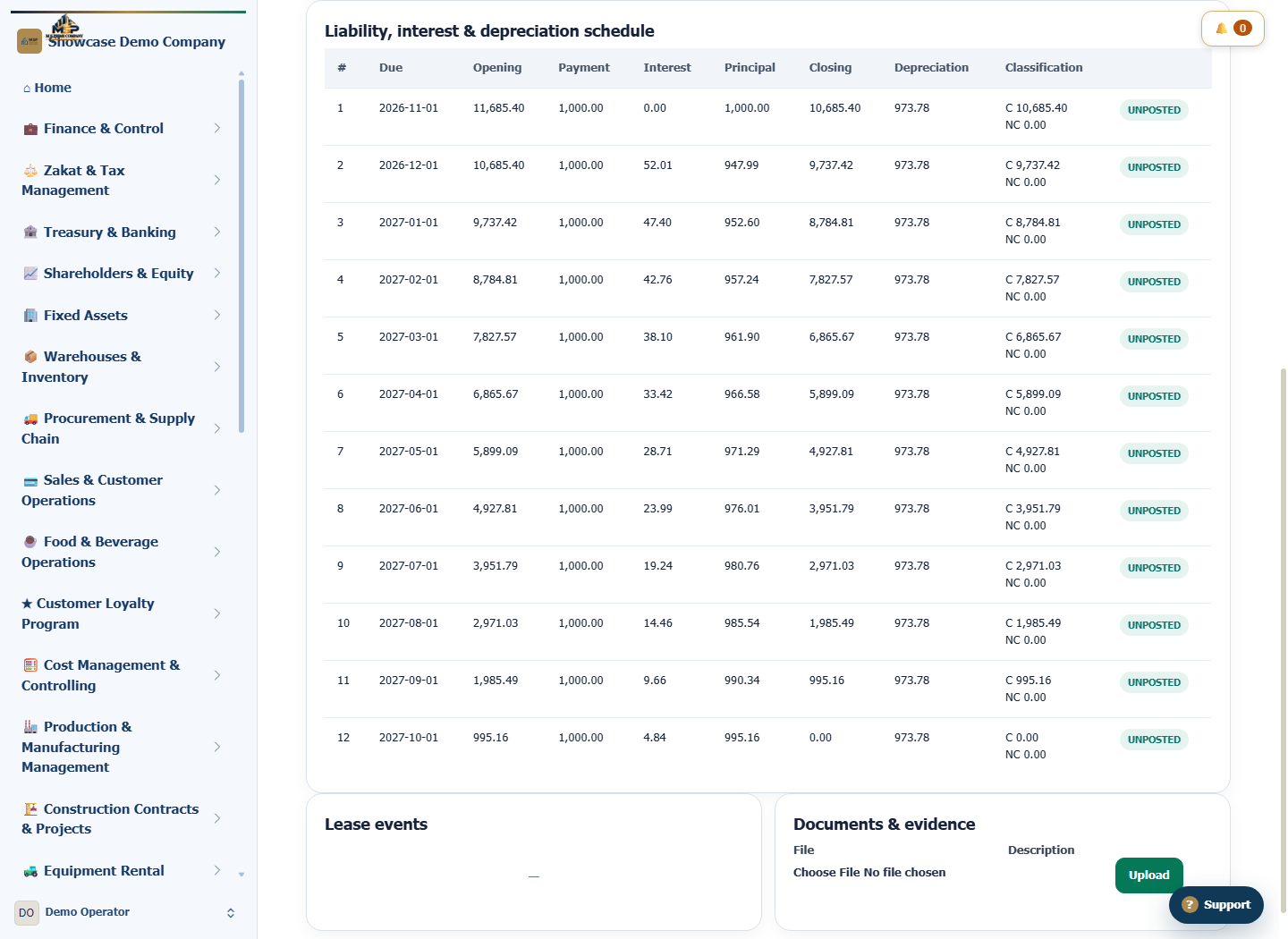
Go to Liability, interest & depreciation schedule. The example has 12 monthly payments. Check the due dates and SAR 1,000 payment, then review interest, principal and closing balances with the responsible specialist before proceeding to approval.
What to check
Match the saved contract dates, payment timing and discount rate to the inputs. Review of a real transaction depends on its contract terms and the organisation’s approved accounting policy.