 MSP ERP
Step-by-step guide
How to create a monthly depreciation draft and check the asset charge
MSP ERP calculates depreciation for eligible assets using each asset’s method and start date. The draft shows the charge per asset and the period total for review before posting.
Before you start
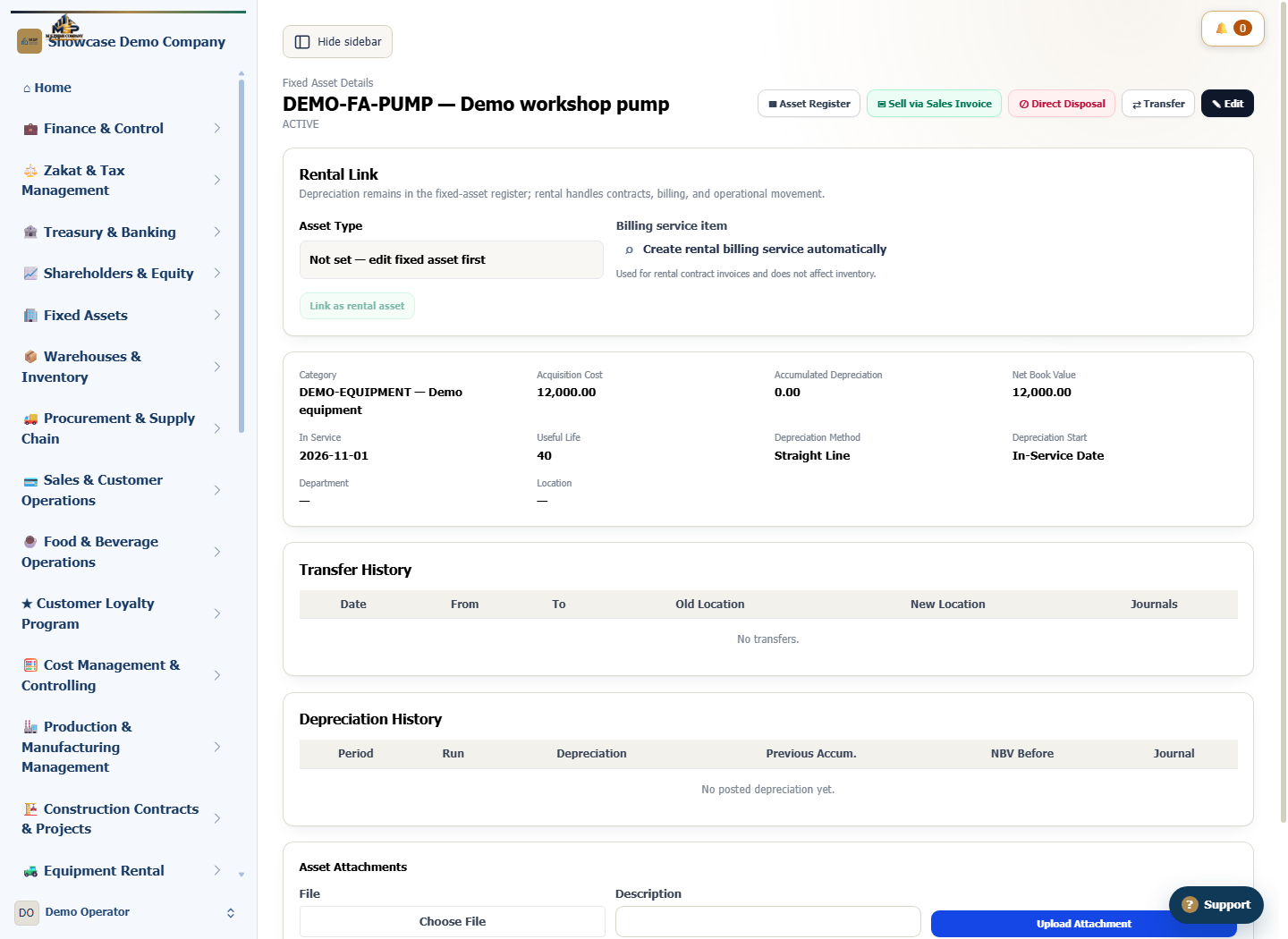
The example uses pump DEMO-FA-PUMP, with an acquisition cost of SAR 12,000, a 40-month life, zero residual value and straight-line depreciation. It entered service on the first day of the example month.
Steps to follow
Review the asset record
In the asset register, search for DEMO-FA-PUMP and open its record. Check acquisition cost, useful life in months, depreciation method and in-service date.
Start a new depreciation run
Open Asset Depreciation Runs and select New Run. Under Single Period, set Run Scope to Current Branch.
Set the period and create the draft
Choose the demo pump’s in-service month in Depreciation Period and select Create Period Draft. MSP ERP calculates eligible assets for that branch and month.
Match the charge to the asset record
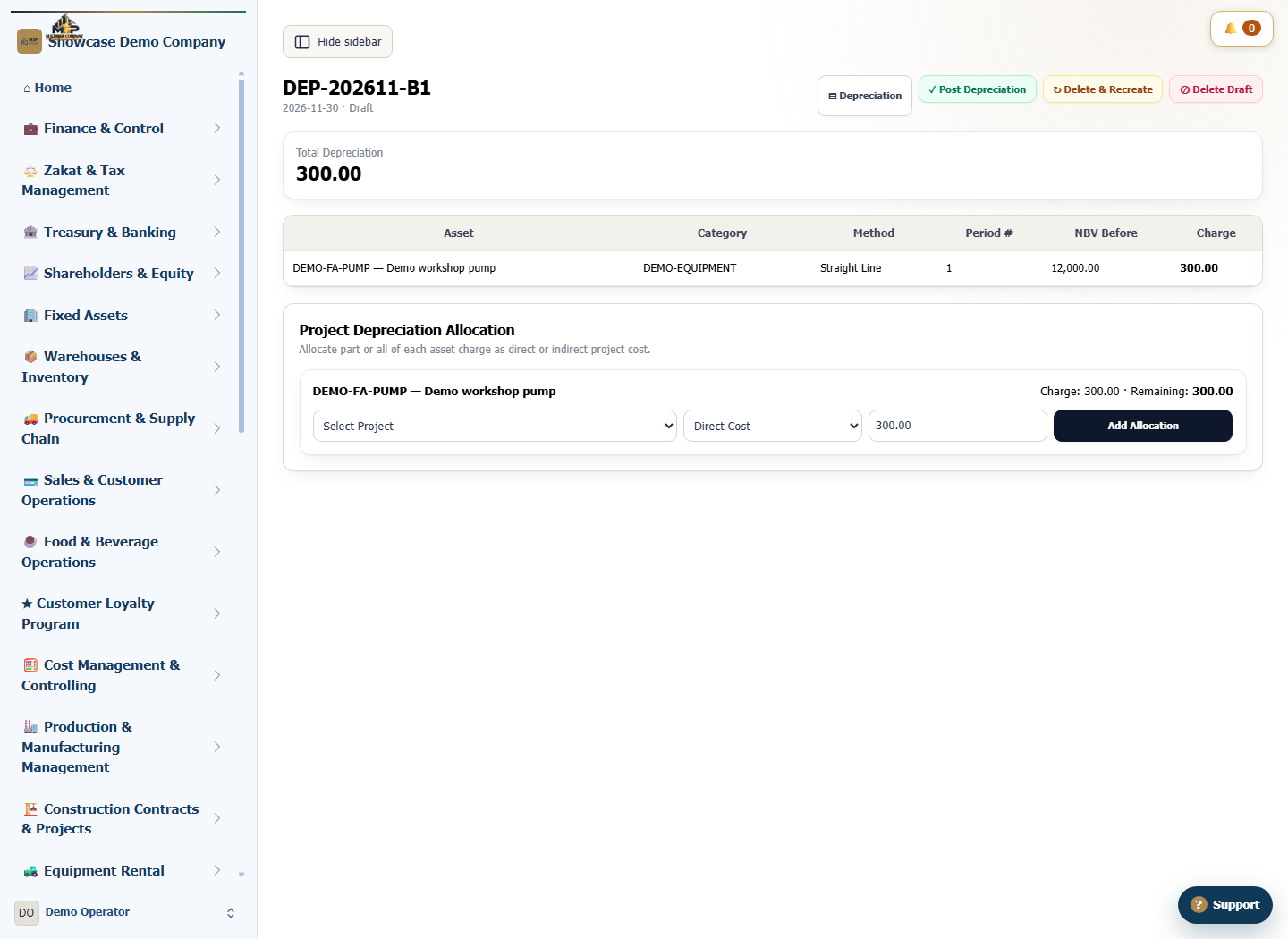
Find DEMO-FA-PUMP in the draft details. Its charge is SAR 300, calculated from SAR 12,000 over 40 months. Check the draft status and total before handing it over for posting under your permissions.
What to check
SAR 300 is the full-month charge for this demo asset. Check the start date and any earlier periods before comparing a real asset charge.