 MSP ERP
Step-by-step guide
How to review the status of an e-invoicing document
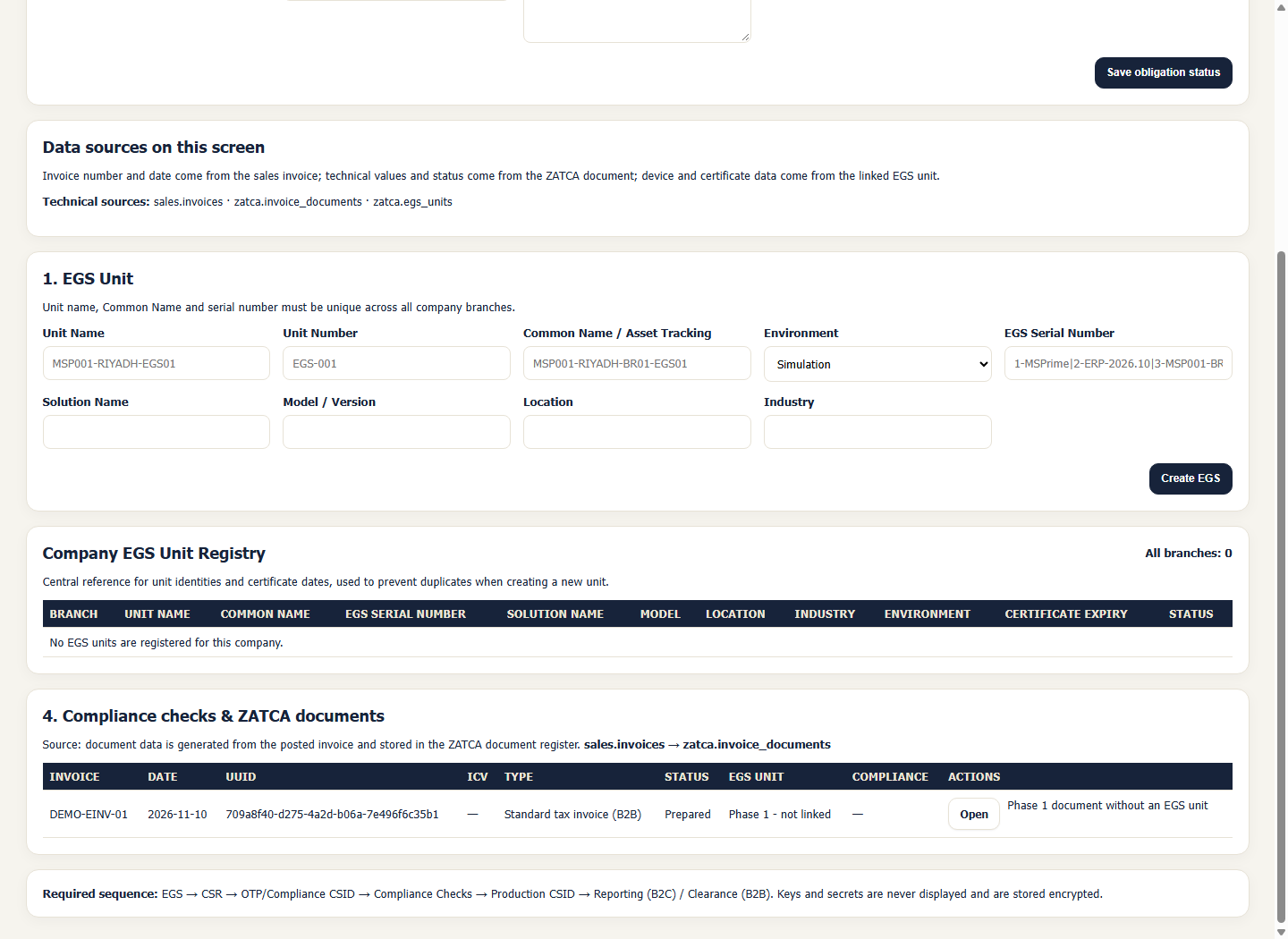
The e-invoicing register combines the sales invoice number and date with its electronic document status and identifier. Finance teams can see the document’s stage and trace it back to the correct invoice.
Before you start
Use a sample invoice number such as DEMO-EINV-01 and a branch and account authorised to view its documents. The screenshot is from an unconnected demo environment with synthetic data.
Steps to follow
Start with the sales invoice number
Review the number, date and invoice type in Sales. Use the same number when checking the electronic document.
Open the e-invoicing document register
Go to the e-invoicing page and find the invoice row in the document list. Match the invoice number and date.
Read the status and details
Review Status and open the details if your role permits it. The demo screenshot shows Prepared, which describes the preparation stage.
Document the review outcome
Record the invoice number, status and document identifier in your follow-up notes. If you need XML, use the view or download action where available to your role.
What to check
Distinguish Prepared from a document that has a recorded clearance or reporting result. Review integration setup with a specialist before any live submission.