 MSP ERP
Step-by-step guide
How to prepare and review an equipment rental contract
MSP ERP links an asset in the equipment register to its contract and keeps the billing period, rate and terms together. Operations can use the contract number when reviewing preparation or delivery.
Before you start
Prepare a fictional forklift and customer, a contract number and an expected end date. Check the asset status in the rental equipment register before selecting it.
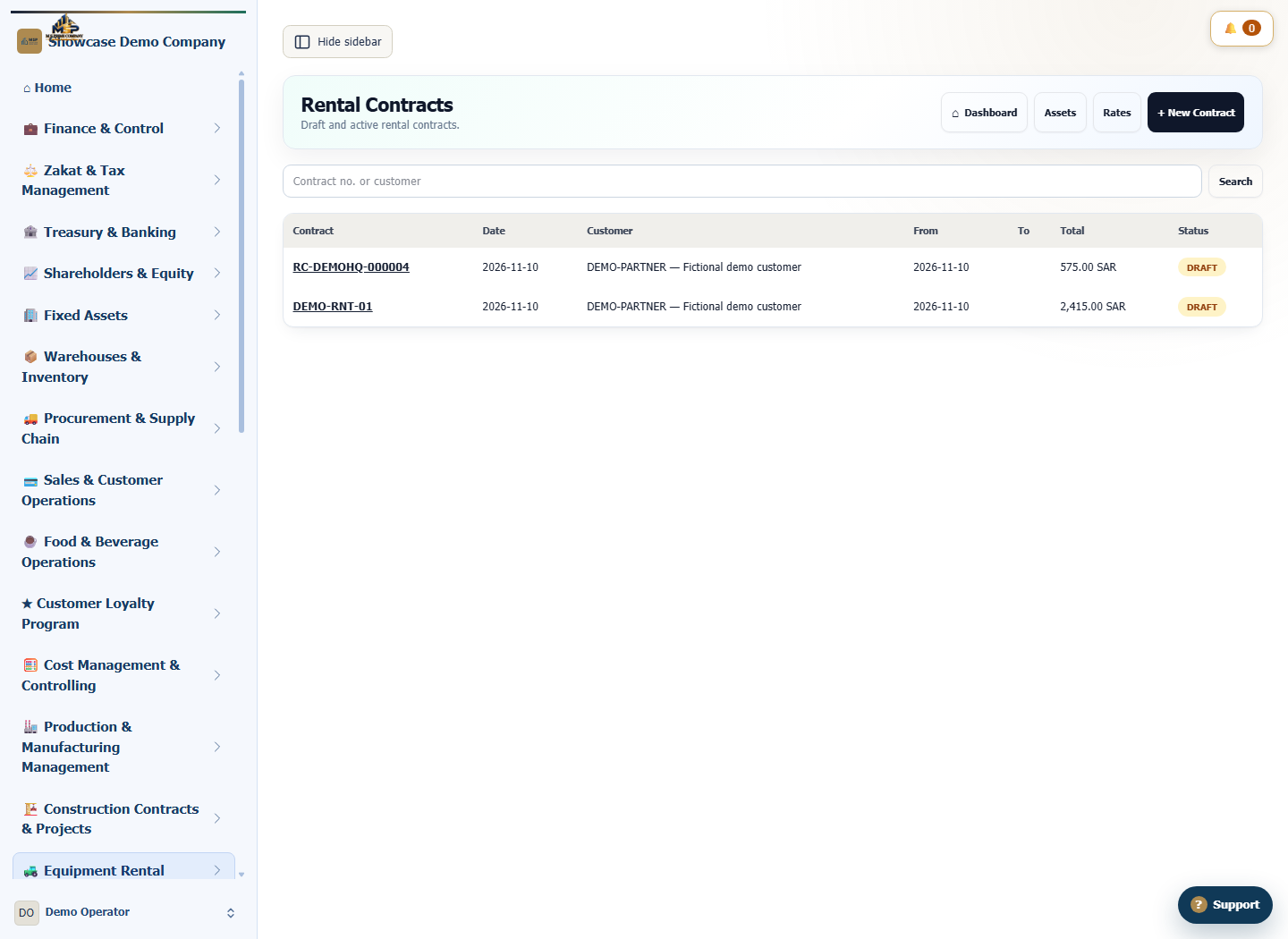
Steps to follow
Start a new contract
In the rental register, select New Contract. Choose the customer and check the generated contract number and contract date. Enter the expected end date if known.
Set the billing method
Choose the billing period, currency and how any advance is applied. In this example, use a fictional daily rate of SAR 500.
Add the asset and terms
Under rental assets, select forklift DEMO-LIFT and enter SAR 500 as the unit rate. Check the discount and selected tax rate. The example uses zero discount and a 15% rate. Add delivery or return terms where needed.
Save and review the draft
Save the contract as a draft and reopen it from the list. Match the asset identifier, customer and billing period, then review the total before taking any further action.
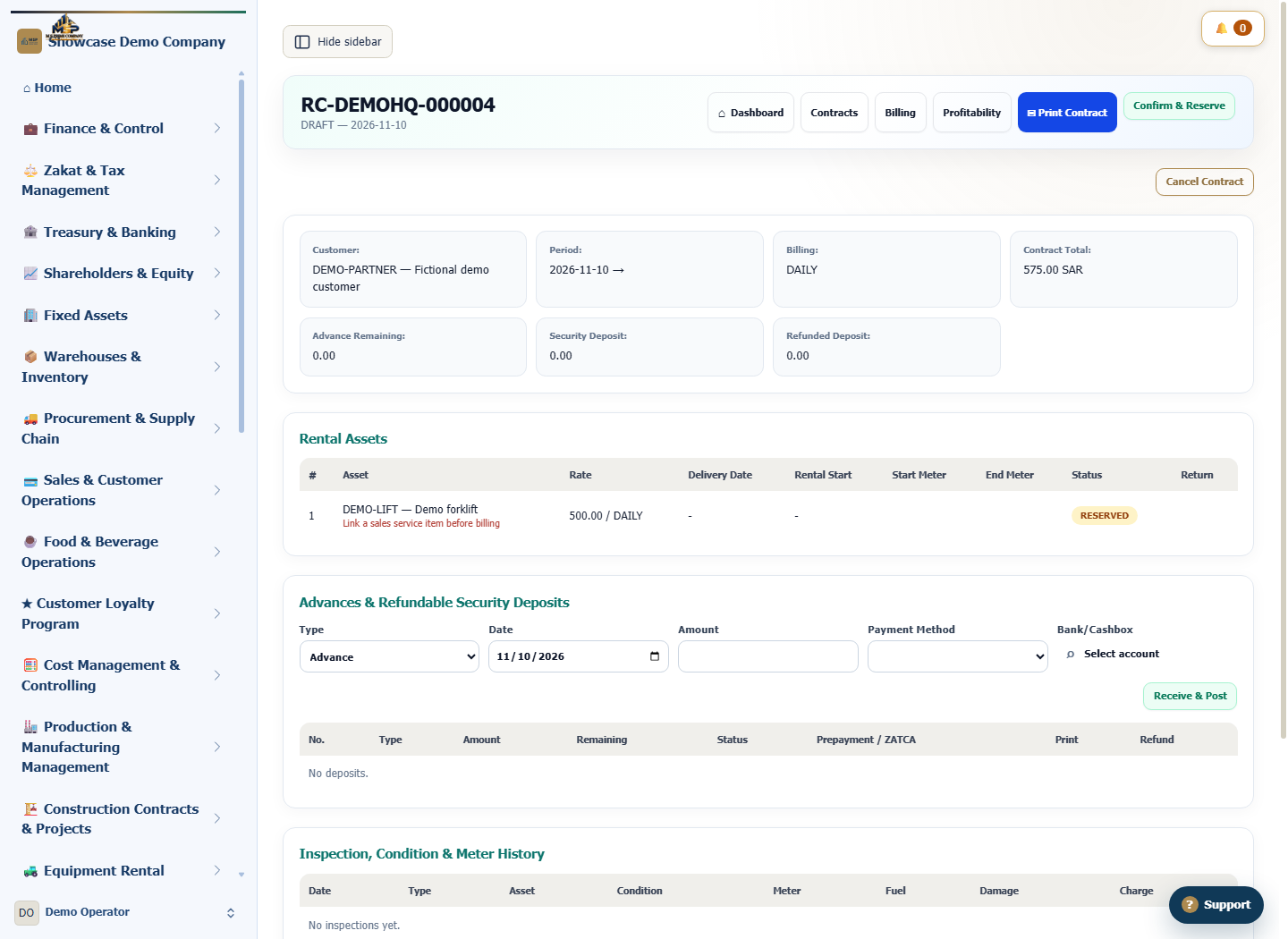
What to check
The example shows a SAR 500 daily rate, SAR 75 tax and a SAR 575 line total. When preparing the invoice, check the actual service period and billable days after delivery.