 MSP ERP
Step-by-step guide
How to create a production order from a bill of materials
A bill of materials lets teams reuse components and units when creating new orders. The order register brings planned output, actual output and cost together so supervisors can investigate variances without rebuilding the component list for each batch.
Before you start
Use an active recipe and raw material and finished goods warehouses for the branch. Demo recipe DEMO-BOM-01 yields one panel from two sheets with zero planned waste.
Steps to follow
Start a production order
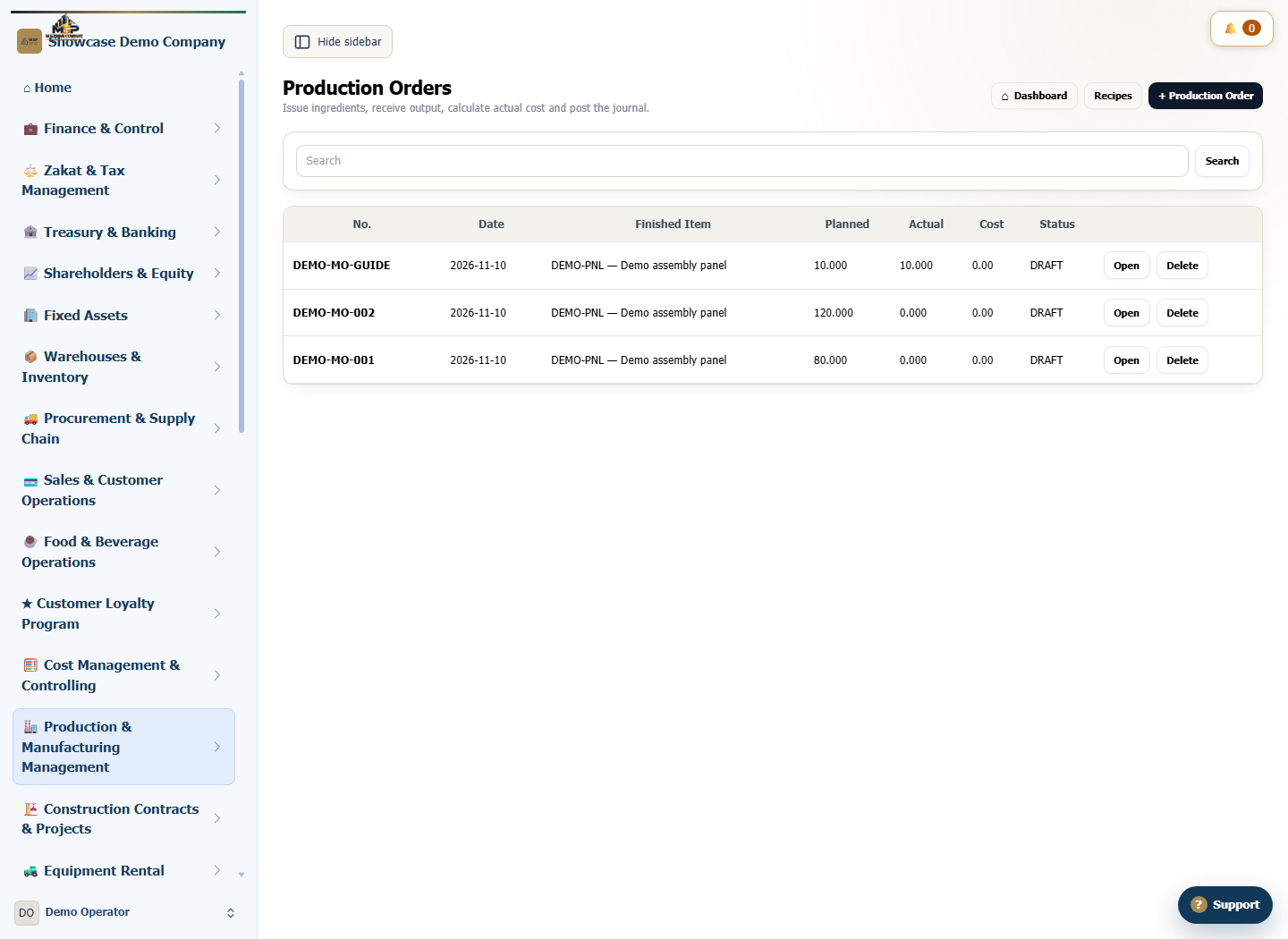
In Production Orders, select Production Order. Enter a unique order number and check the order and production dates. The screenshots use DEMO-MO-GUIDE.
Select the recipe and warehouses
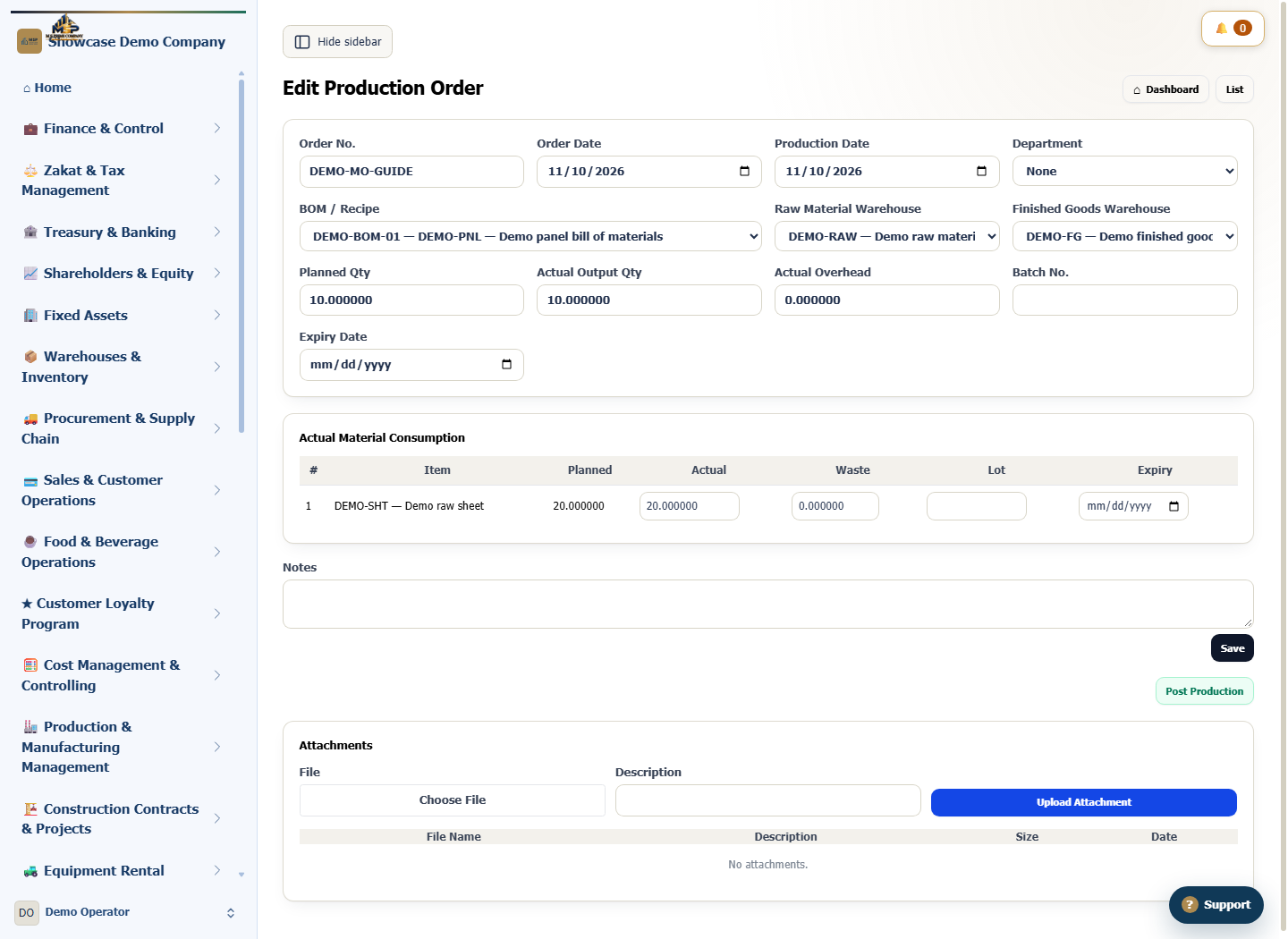
Select recipe DEMO-BOM-01, raw material warehouse DEMO-RAW and finished goods warehouse DEMO-FG. Enter 10 in Planned Qty.
Save and review material requirements
Select Save to open the draft. In Actual Material Consumption, review the Planned column. Ten panels require 20 sheets in this example.
Reopen the draft from the register
Find DEMO-MO-GUIDE and select Open. Match the finished item, output quantity and warehouses. After the run, record measured output, material consumption and waste before posting under your assigned permissions.
What to check
Match 10 panels to 20 planned sheets. The draft starts with initial values in the actual fields. Replace them with measured quantities after the run.