 MSP ERP
Step-by-step guide
How to open and track a service ticket in the customer portal
The customer workspace in the External Portal lets you submit an inquiry and check its reference and status. Including an invoice number in the request helps the service team identify the document.
Before you start
Use a demo portal account linked to the fictional customer, with permission to use tickets. The example asks about synthetic invoice DEMO-EINV-01.
Steps to follow
Open the customer workspace
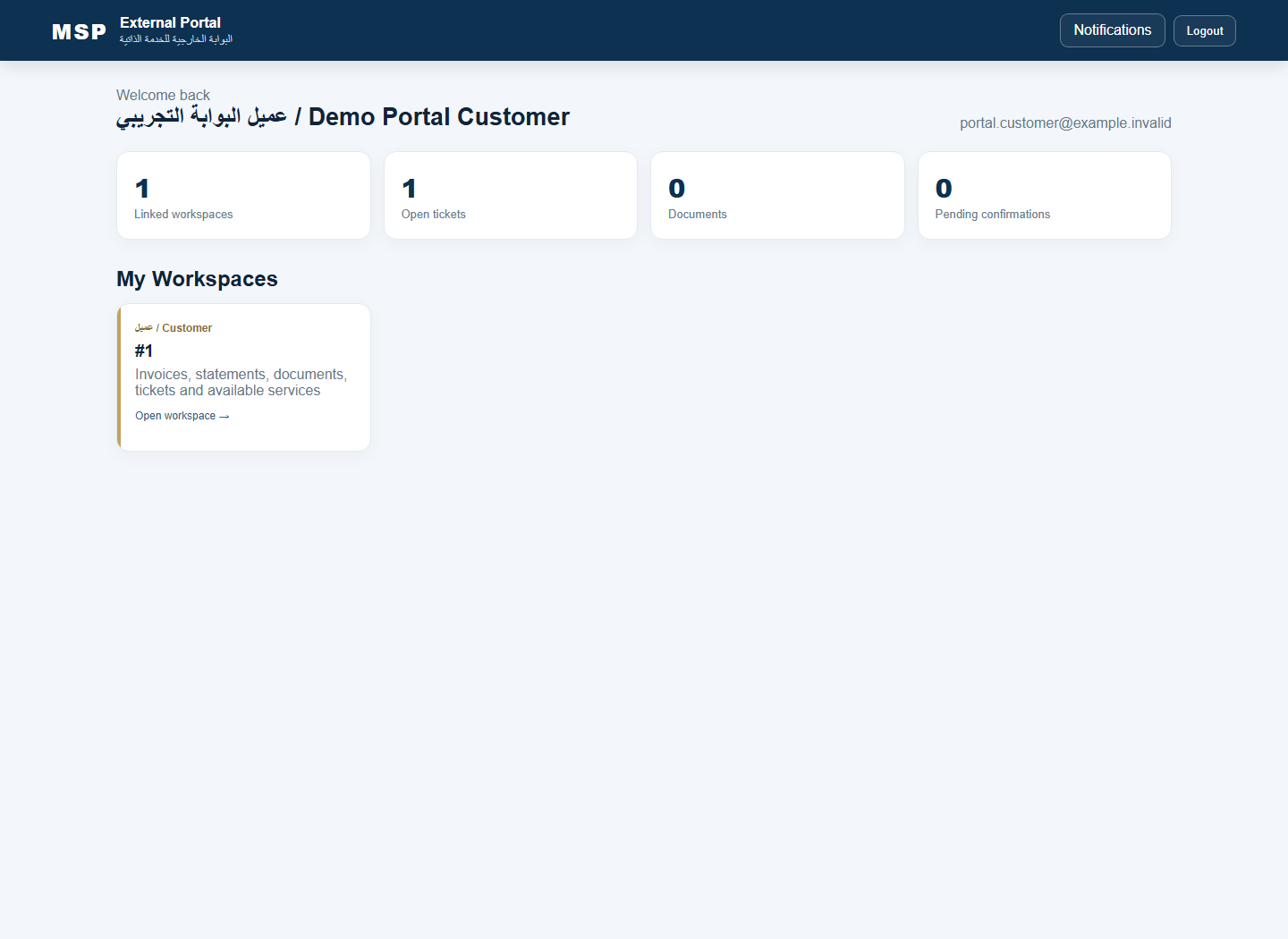
Sign in to the External Portal with the demo customer account. Under My Workspaces, select the customer card and choose Open workspace.
Prepare the service request
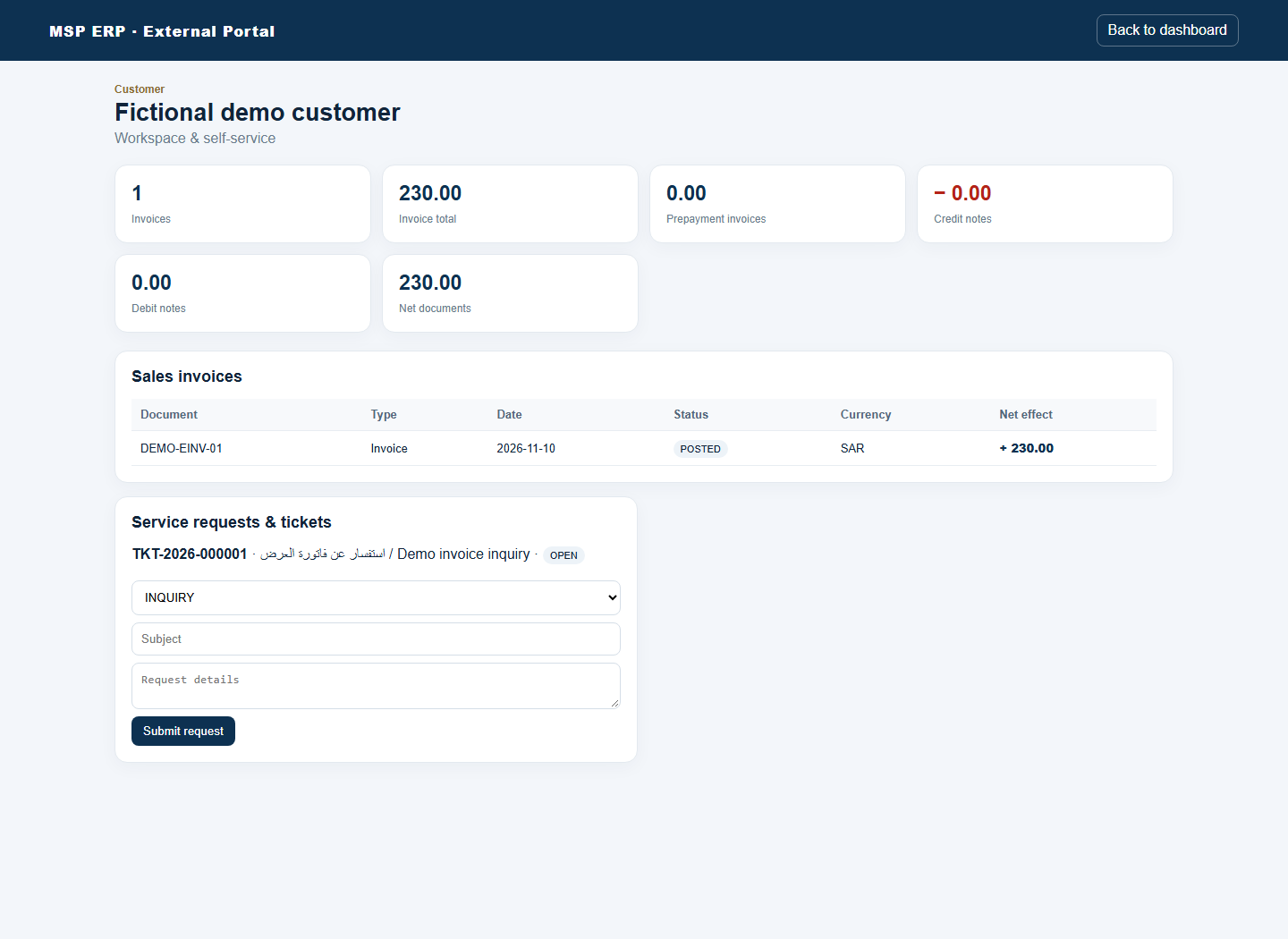
Under Service requests & tickets, choose INQUIRY. Enter a short subject and include the demo invoice number and the line you want clarified in Request details.
Submit and note the ticket number
Select Submit request. The ticket page opens. Record the number beginning with TKT and check that the subject and message appear.
Check the ticket status
Return to the customer workspace and check the reference and status in the list. The new ticket is marked OPEN, and the portal dashboard includes it in Open tickets.
What to check
Match the ticket number and subject to your request. The invoice reference appears in the message you entered.