 MSP ERP
Step-by-step guide
How to read stock movements and reconcile inbound and outbound quantities
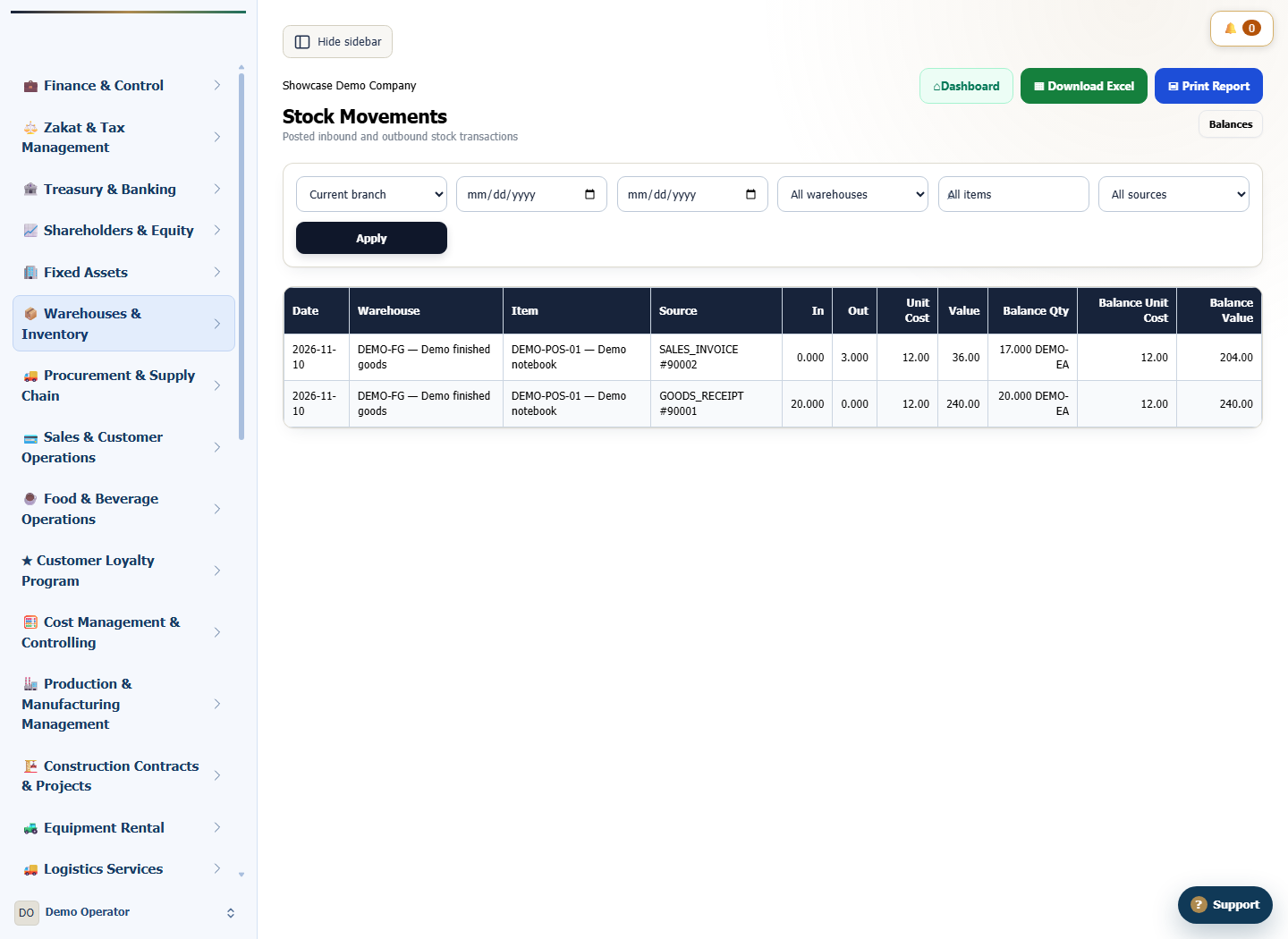
The stock movement report shows each movement with its warehouse, source and unit. A warehouse operator can trace a quantity change back to the document that caused it.
Before you start
In the demo, 20 units of Demo notebook entered the finished goods warehouse and three left it. Identify the branch, warehouse and period you want to compare.
Steps to follow
Open the stock movement report
Go to stock movements and set the period and warehouse. If you are reviewing one branch, confirm the branch context.
Select the item
Use the item filter to select DEMO-POS-01. Leave the source filter open when comparing inbound and outbound movements together.
Match each movement to its source
Read the source, inbound or outbound quantity, and unit on each row. In this example, compare 20 units in and three out.
Reconcile the net effect to the balance
The two movements add a net 17 units. When checking the ending balance, include the opening stock and any other movements for the same item and scope.
What to check
Net movements and ending stock differ when there is an opening balance. Match the period, warehouse and unit before interpreting a variance.