 MSP ERP
Step-by-step guide
How to run an integration sandbox test and review message outcomes
The Integration Centre’s internal sandbox lets technical teams practise reading message outcomes and distinguishing successful delivery from retry cases.
Before you start
Use an isolated demo and an account with integration management permissions. The exercise uses mock Sandbox connectors, with message processing handled inside MSP ERP.
Steps to follow
Open the integration dashboard
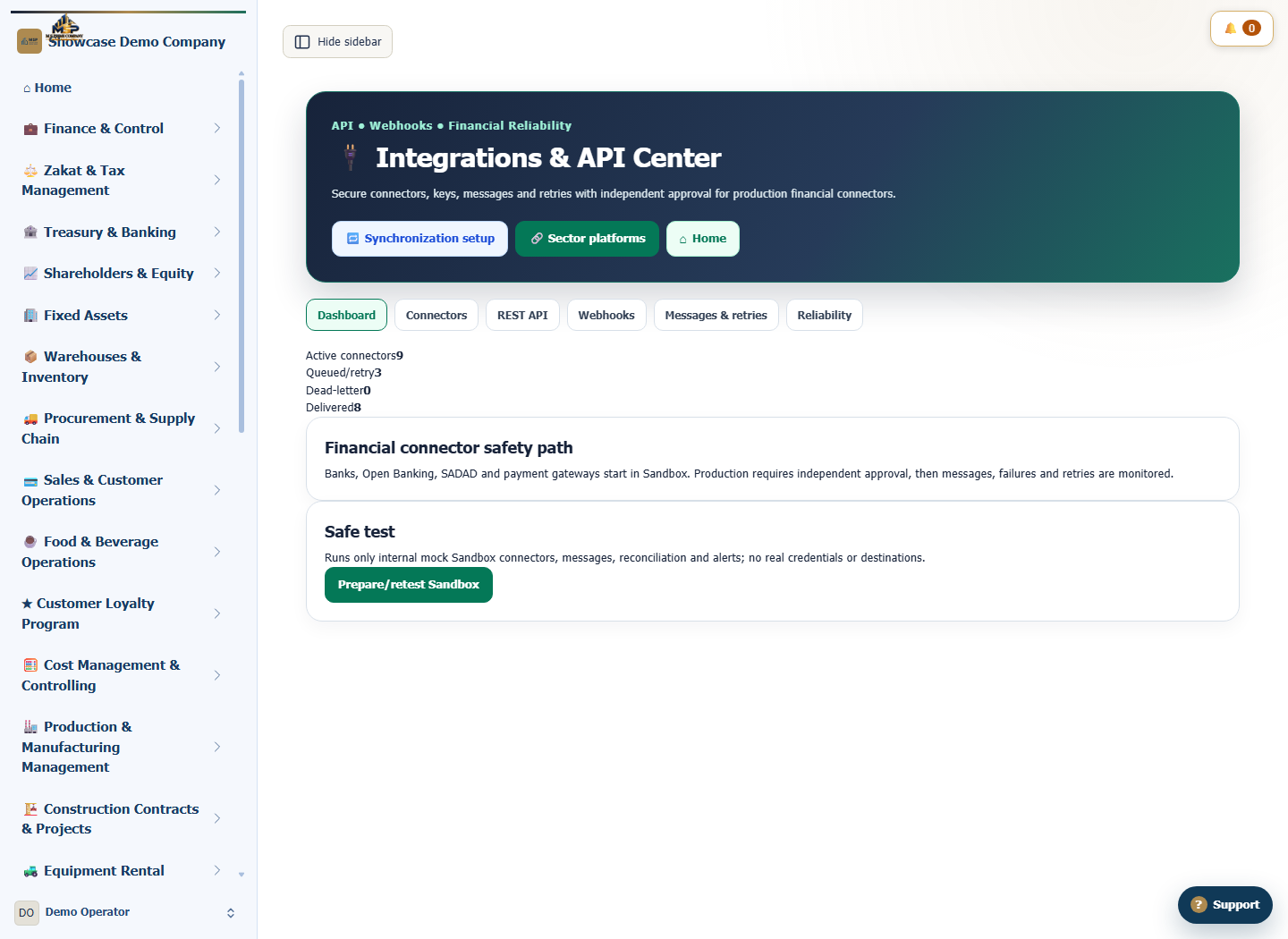
In Integrations & API Center, open Dashboard. Find Safe test and review the message counters.
Run the internal simulation
Select Prepare/retest Sandbox. MSP ERP generates test messages using mock connectors and displays the setup result.
Review the message log
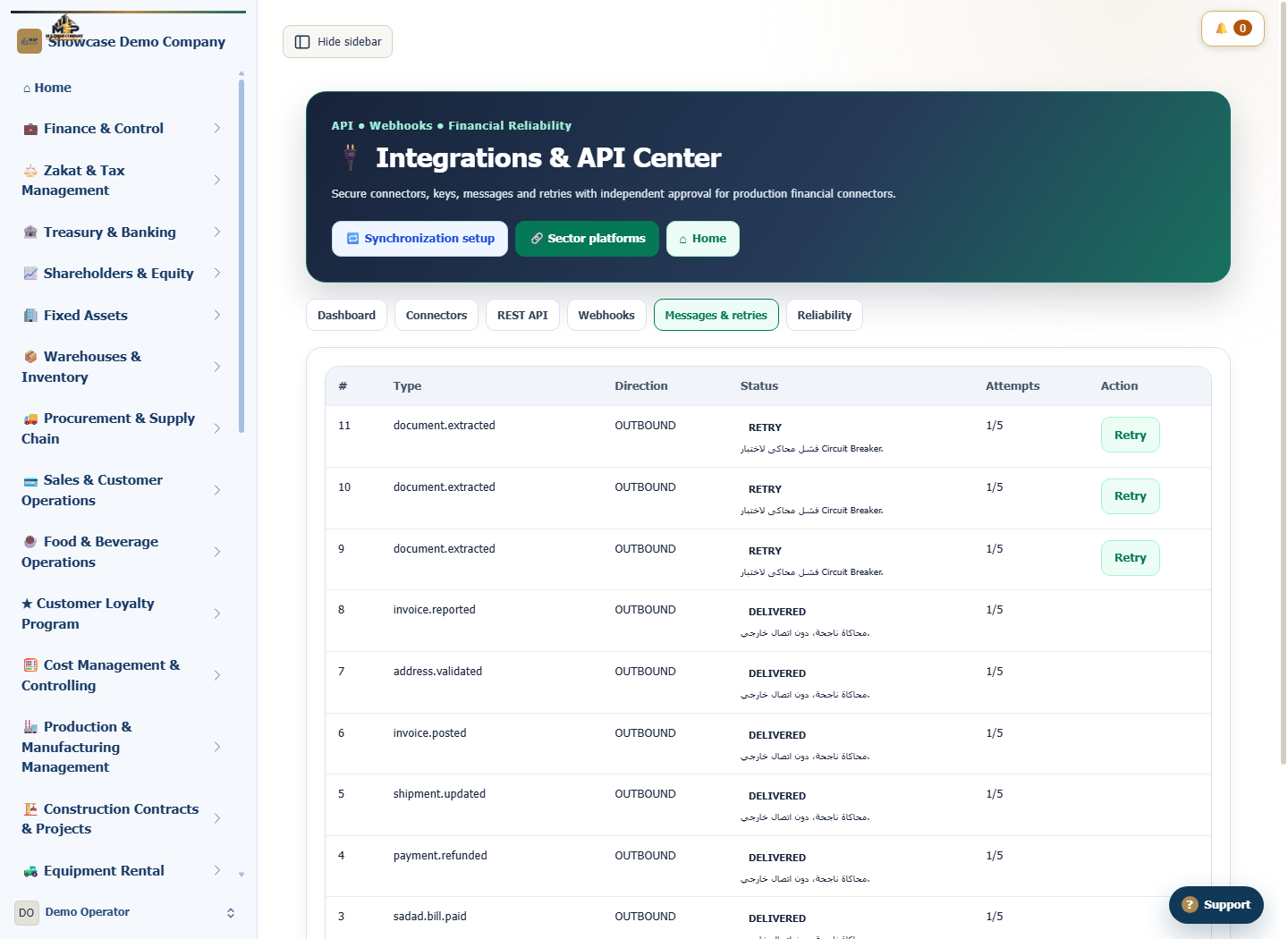
Open Messages & retries. Find invoice.posted and check that its direction is Outbound and its status is Delivered.
Compare outcomes in the log
Compare the invoice message with document.extracted messages in the simulation. Check their status and attempt count, then note the message ID for any entry that needs follow-up.
What to check
In this exercise, Delivered means the internal processor completed the simulated message. Use type, direction and status to distinguish the test outcomes.