 MSP ERP
Step-by-step guide
How to add an employee and find their profile
The HR Workspace starts with a basic employee record. Once created, HR can find the record by branch, department or name, then complete additional information in the profile.
Before you start
The example uses Tutorial Demo Employee, an Operations Coordinator in Demo Branch and the Demo operations department.
Steps to follow
Open Employees
From HR Workspace, open Employees and find Add New Employee.
Enter the basic information
Choose the branch and department and enter the Arabic and English names and job titles. Check nationality and hire date, then select full-time employment for the example. Enter a fictional Basic Salary in the demo. The form requires this field.
Save and open the profile
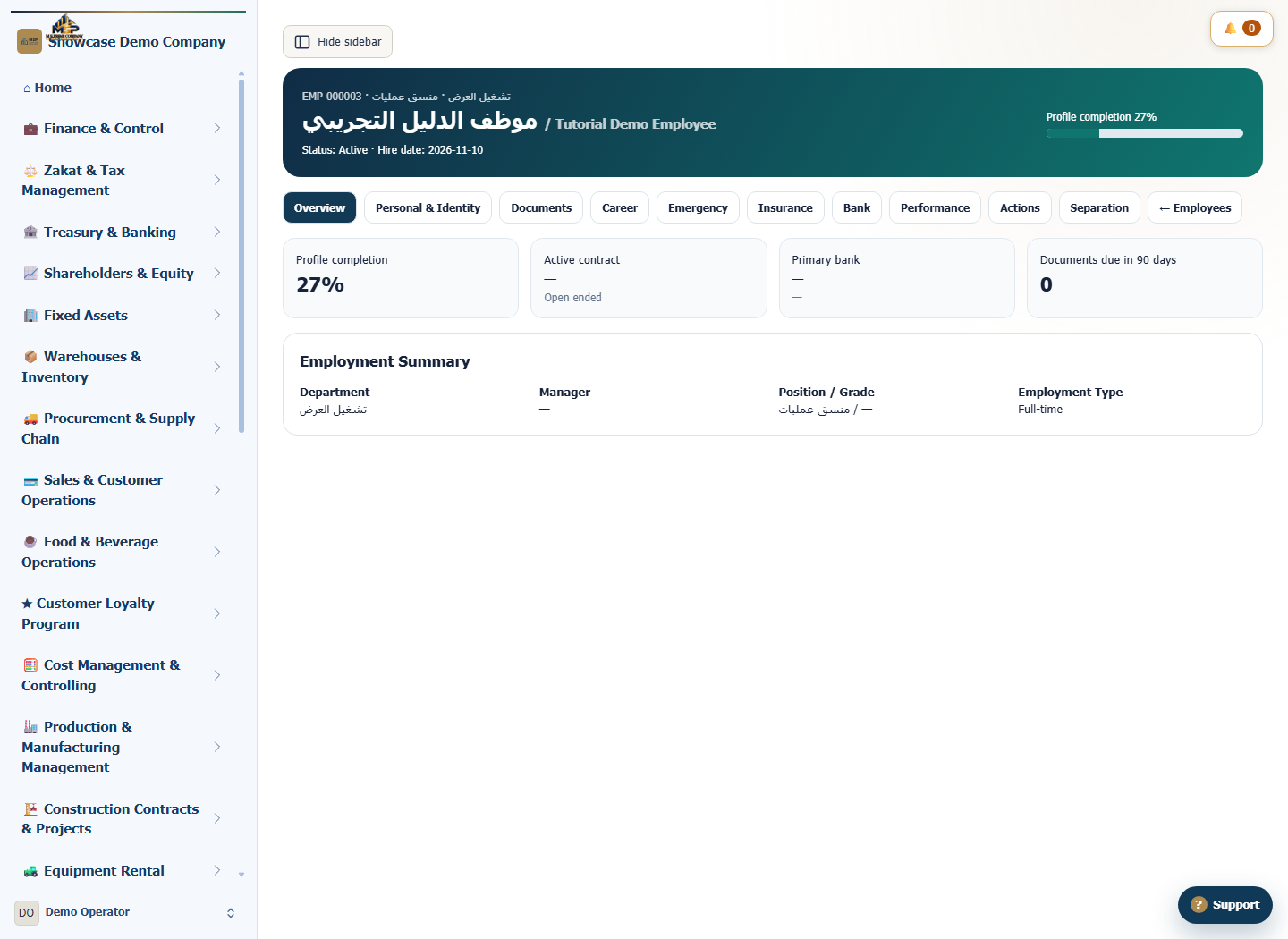
Select Create Employee & Open Profile. Note the generated employee number and match the department and job title to the values you entered.
Find the employee again
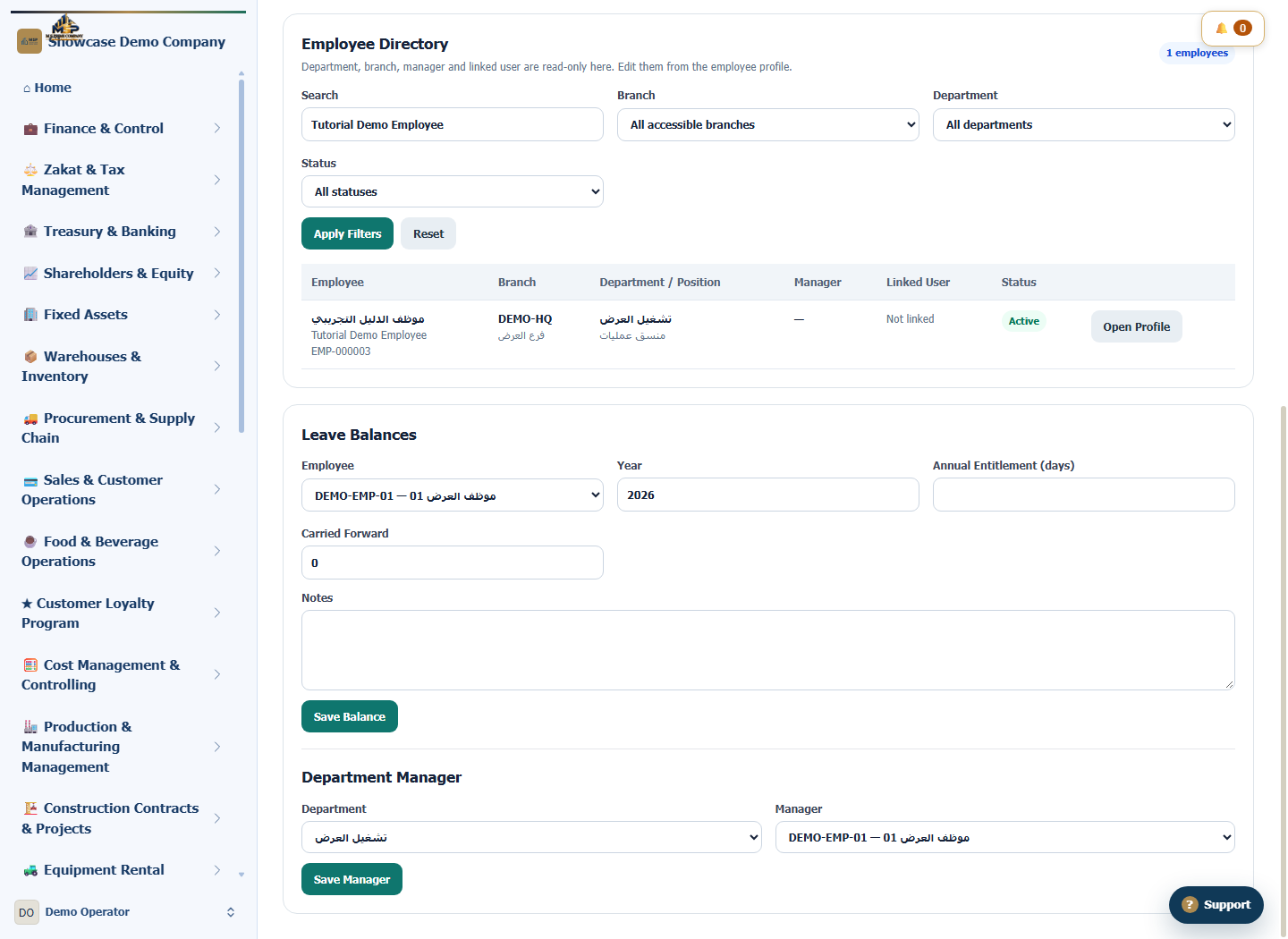
In Employee Directory, search by name or number and check the branch in the result. Filter by branch and department if needed. Select Open Profile and confirm you are back in the same record.
What to check
If the employee appears under an unexpected branch, check the branch on the record and the directory filters before creating another record.