 MSP ERP
Step-by-step guide
How to prepare a customer progress certificate from the bill of quantities
A progress certificate loads the project’s bill of quantities and shows previous, current and cumulative quantities. This helps the project team connect the claim to completed work and review retention and deductions before approval.
Before you start
Use a fictional project and customer with a prepared BOQ. The sample contract covers 100 units of panel installation at SAR 75 each, with 20 units completed in the current period.
Steps to follow
Start a new progress certificate
From Customer Certificates, select New Customer Certificate. Choose the project and select Load BOQ. Check the certificate type and project customer, then enter the certificate number and date.
Enter the current completed quantity
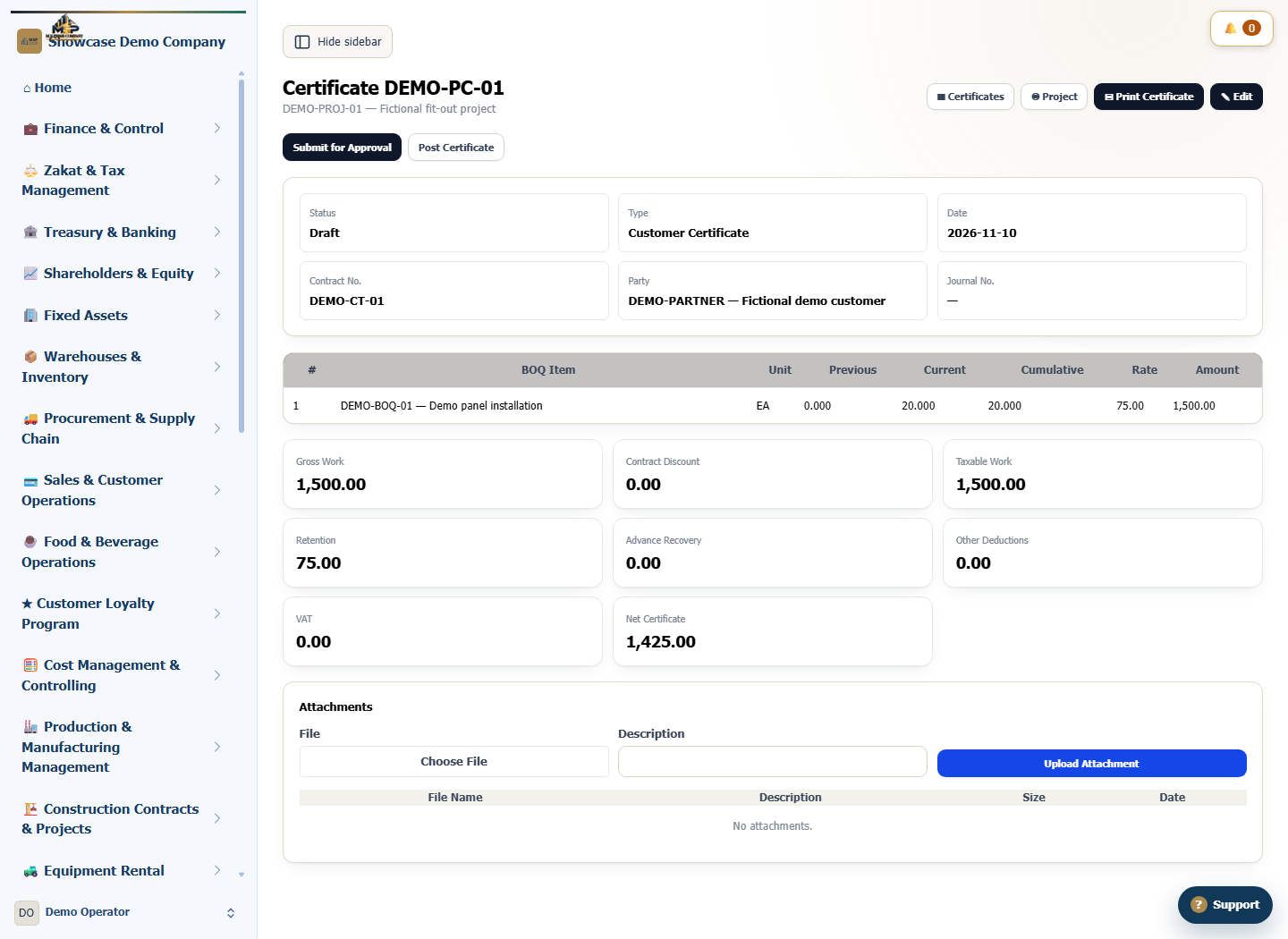
Under Certified BOQ Lines, enter 20 as the current quantity for the installation line. Compare previous and cumulative quantities with the contract and approved variations.
Review the gross and net values
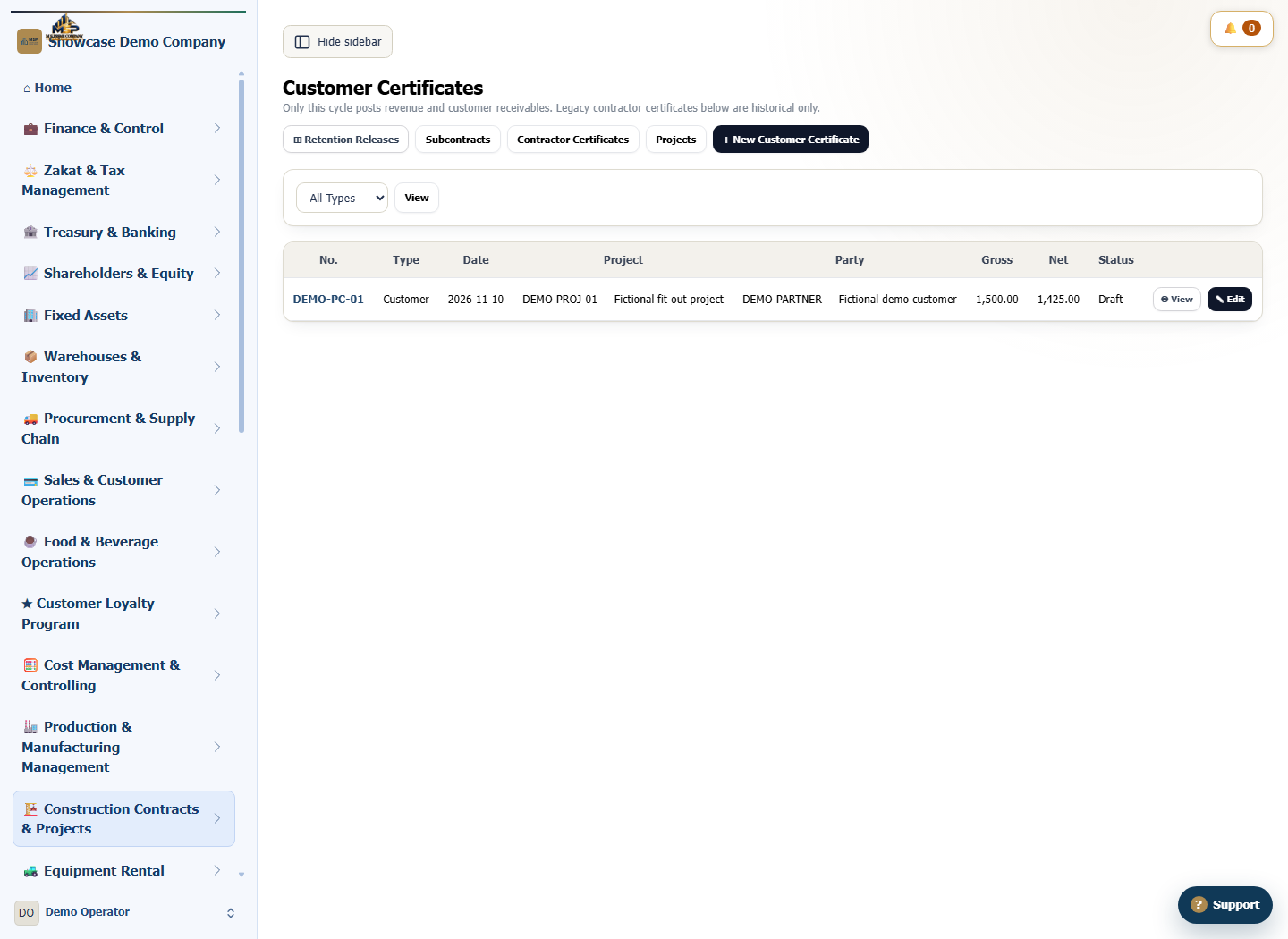
Gross work is SAR 1,500 in the example. The demo project shows SAR 75 retention and a net value of SAR 1,425. Check advance recovery, deductions and tax according to the project setup.
Save the draft and review its details
Select Save Draft, then open DEMO-PC-01 from the list. Match the project, work line and amount before handing off the draft under your approval policy and permissions.
What to check
Check that the cumulative quantity is 20 of 100 in this example and that the net value reconciles to gross work after the recorded deductions. The figures belong to the demo data.